
One of Jira’s strongest capabilites is it’s ability to allow you to categorise and organise the work you’re tracking. Components and versions are another way of grouping, tracking, and managing your work more efficiently. While these features originated in software development, they’re valuable tools for any type of project management.
Components: Breaking Down Your Project
Think of components as sections or categories within a product or service you’re developing. Components allow you to break up a bigger piece of ‘something’ and allocate your Jira issues to those components.
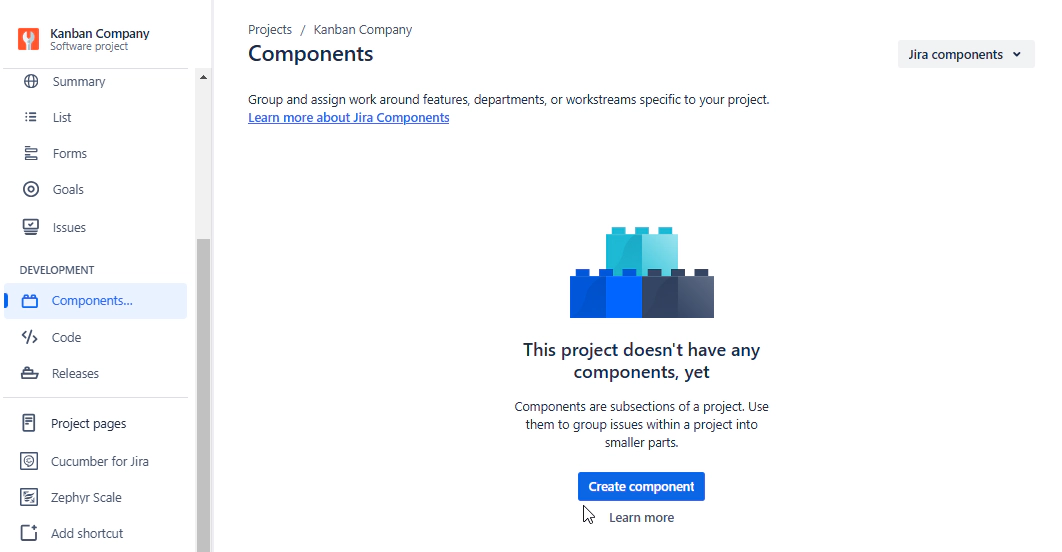
A simple example here might be that your project is to develop a car. You have lots of issues/work items you need to track in order to complete that development. Some issues are related to the engine. Some related to the body. Some to the interior. These can be considered the “Components” of your car. You can then mark all your Jira issues related to the engine as belonging to the component “Engine”.
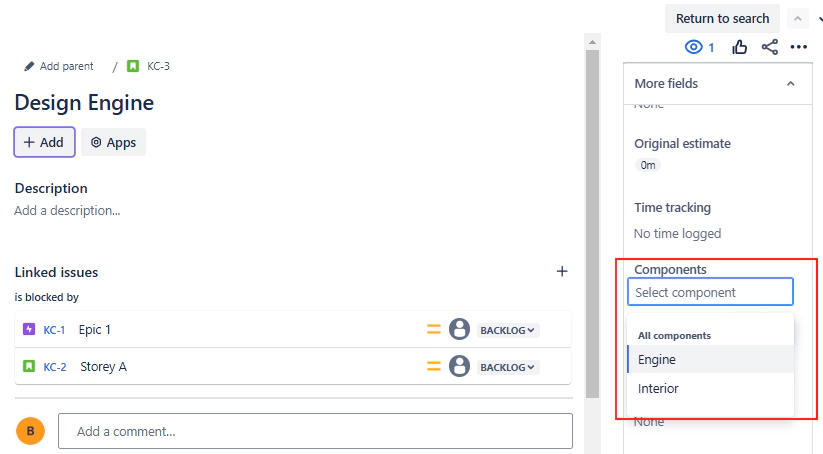
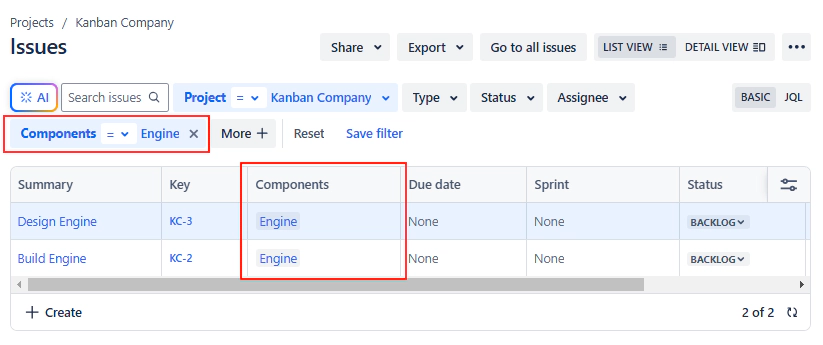
If you mark all your Jira issues relating to the engine with the “Engine” component in Jira then it makes it really easy for the people working on the engine to find the issues that are relevant to them.
Availability and Setup
The few things you need to consider about Components:
- Components are only available in company-managed projects
- Components are enabled by default in company-managed projects
This is one of many good reasons to go with Company managed projects.
- Group related work together
- Automatically assign work to the right people
- Filter and search issues by component
- Create component-specific reports and dashboards
- Get visibility into specific areas of your project
Components are a really useful way of organising all your work. It’s a feature that’s built into Company projects and really easy to use.
How to Use Components Effectively
Let’s take a look at another practical example. Imagine you’re managing a railway construction project. You might break it down into components like:
- Trains and Carriages
- Track Infrastructure
- Signaling Systems
- Station Buildings
Each component can have an owner who’s automatically assigned to related issues.
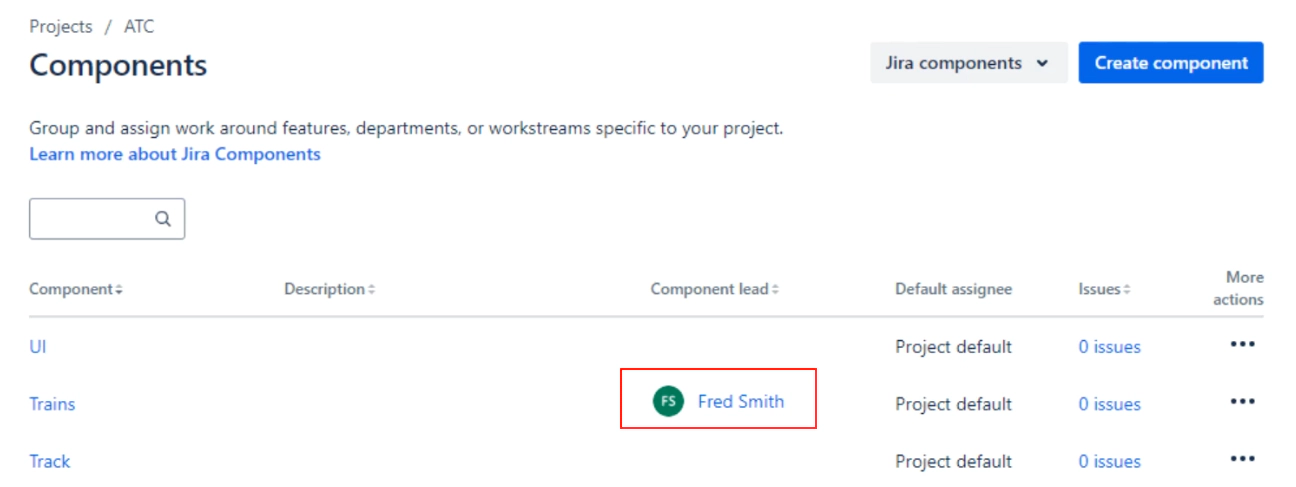
When someone creates a new “track” related task, it’s automatically assigned to the track team leader. Which means you don’t have to worry about sifting through all the issues created and manually assign them to the right person.
The big benefits of Components then; time saved having to allocate issues manually, a logical break down of you rproject that delivers visibility into specific areas and a grouping mechanism that works well when you need to create reports.
Don’t overlook this powerfull feature. It’s one good reason to start out with Company managed projects rather than Team managed projects.
Versions (Releases): Organizing Work by Milestones
Versions in Jira (found under “Releases” in newer versions of Jira) help you group work that should be completed and delivered as part of a package of items and/or on a specific date. While the term “version” comes from software releases, think of them as milestones or delivery phases for any project type.
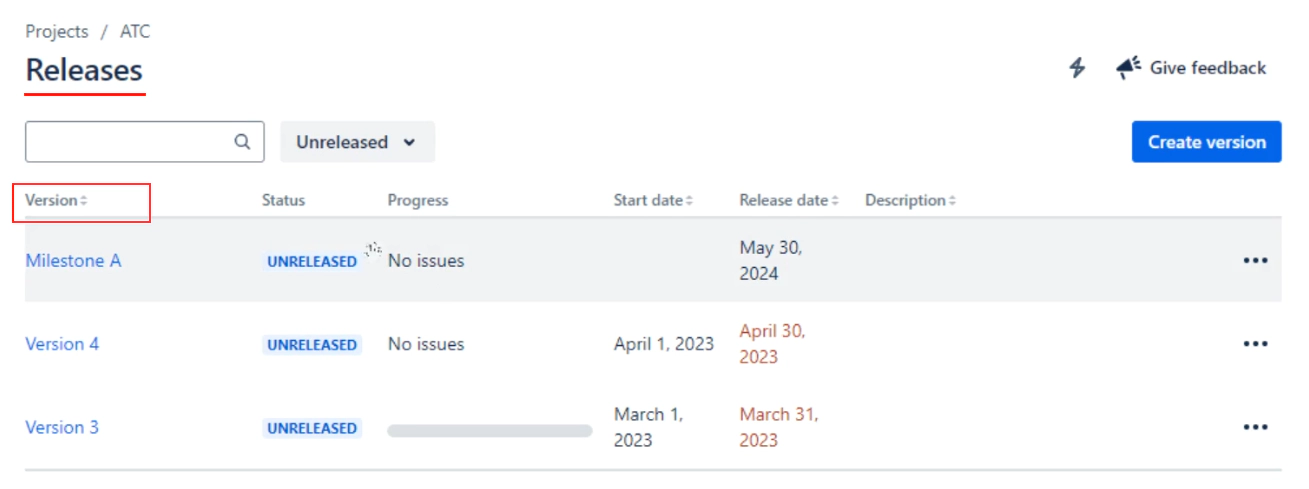
The terminology gets a bit confusing here. The main feature is called “Releases” in Jira. When you work with Releases you create “Versions”. Think of it this way: You define a Version that you will Release. The version bundles up a number of issues and, optionally, assigns the a date when they’ll be released.
Setting Up Versions
First thing to be aware of is that releases aren’t enabled by default. You’ll want to go to your project settings and enable this feature.
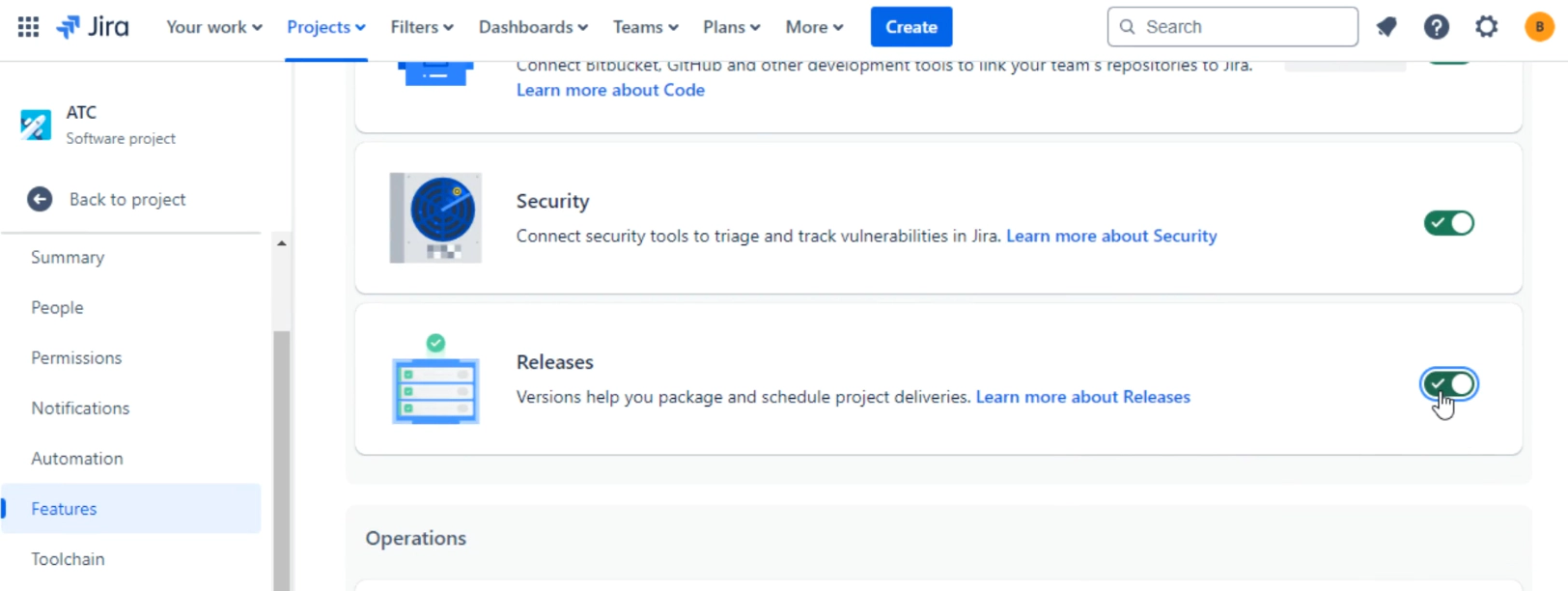
Follow these steps to enable:
- Go to Project Settings
- Find the Features section
- Switch it on
Once complete you’ll find the additional menu item “Features” in the left hand menu panel
Working with Versions
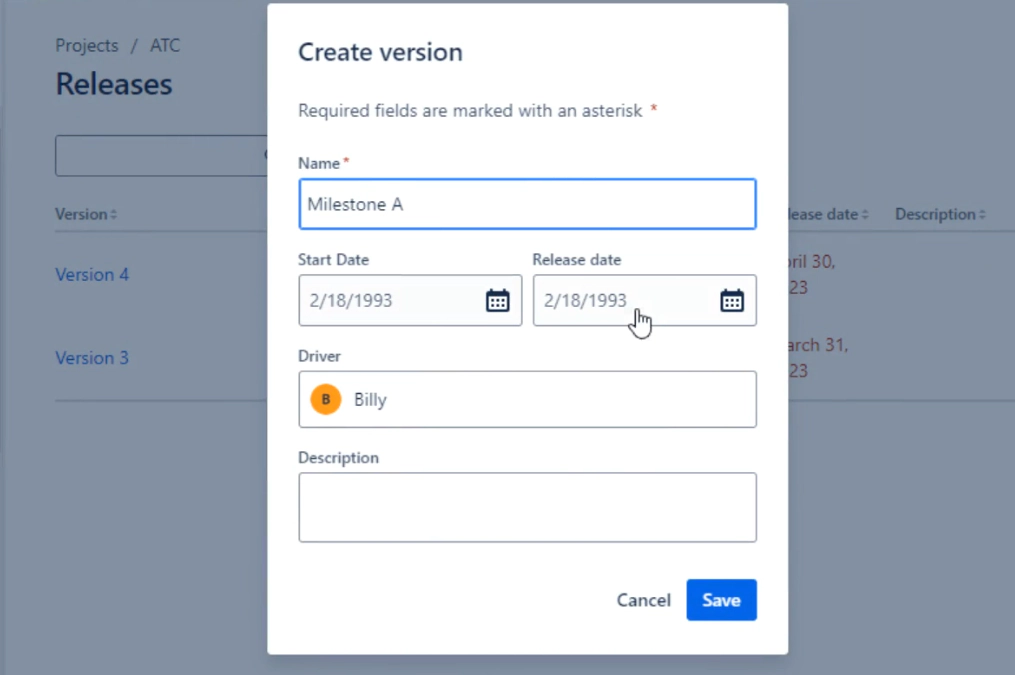
Once enabled you can create new releases/versions by adding a Name, start date, end date and an owner
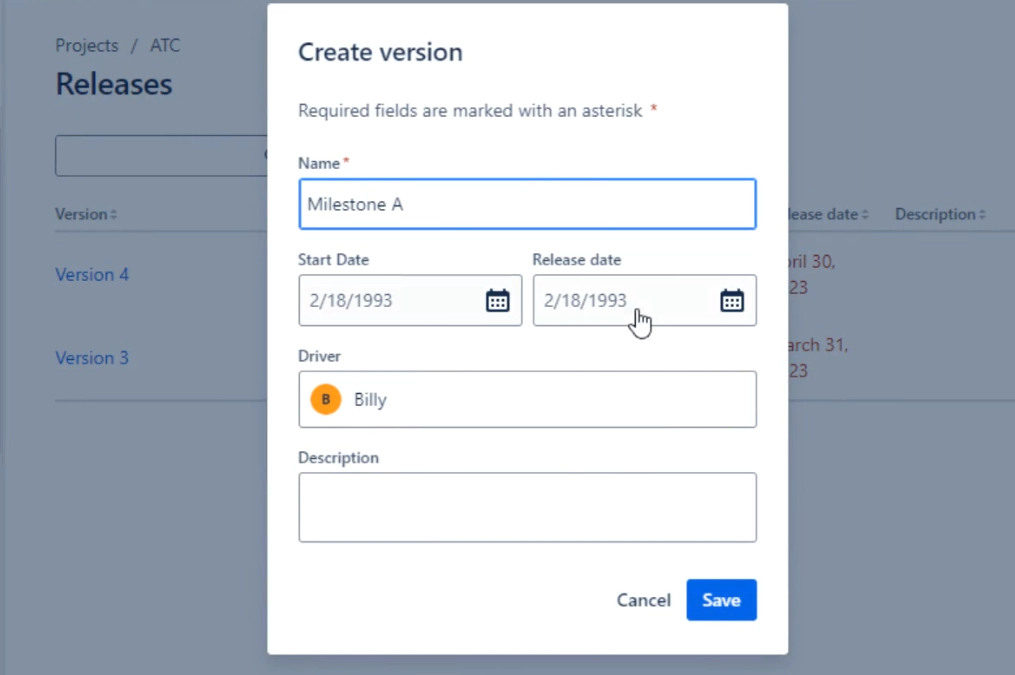
Once setup you can then assign your issues to one or more releases/versions.
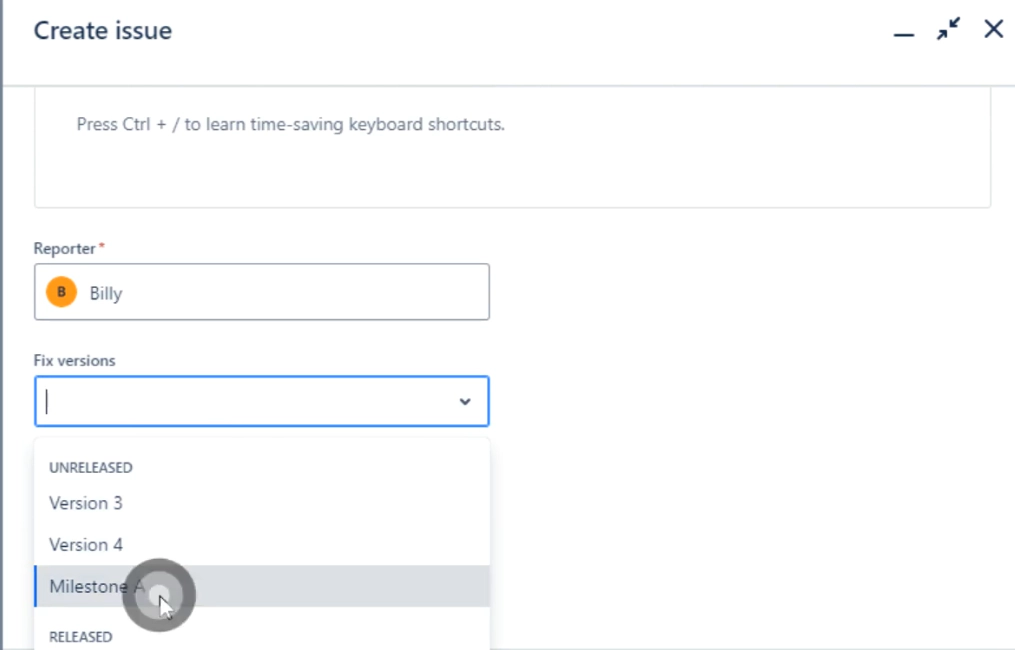
So you’ll see that you can assign these version values in the “Fix version” field. Again this is a left over from software development. Just think of the “Fix version” fields as the “Tartget release” for the issue to be delivered in.
Version Categories
You might have noticed by now that Versions can be in three states:
- Unreleased (still being worked on)
- Released (completed)
- Archived (completed and no longer active)
Unreleased versions represent work that’s actively in progress, where teams are currently focusing their efforts and can continue to add new tasks.
Released versions contain work that has been completed and delivered. When you mark a version as released, you’re signaling that all the planned work is done and has been delivered to its intended audience.
Archived versions are those that have been completed and are no longer relevant to current operations. While released versions are part of your recent history, archived versions are hidden - still accessible if needed, but kept out of sight to prevent cluttering your day-to-day view of the project.
Timeline and Roadmap Integration
Project timelines in Jira give you an overview of your work and important milestones. By plotting versions on your timeline, you can easily see how work flows from one milestone to the next, helping you spot potential bottlenecks or overlapping deadlines.
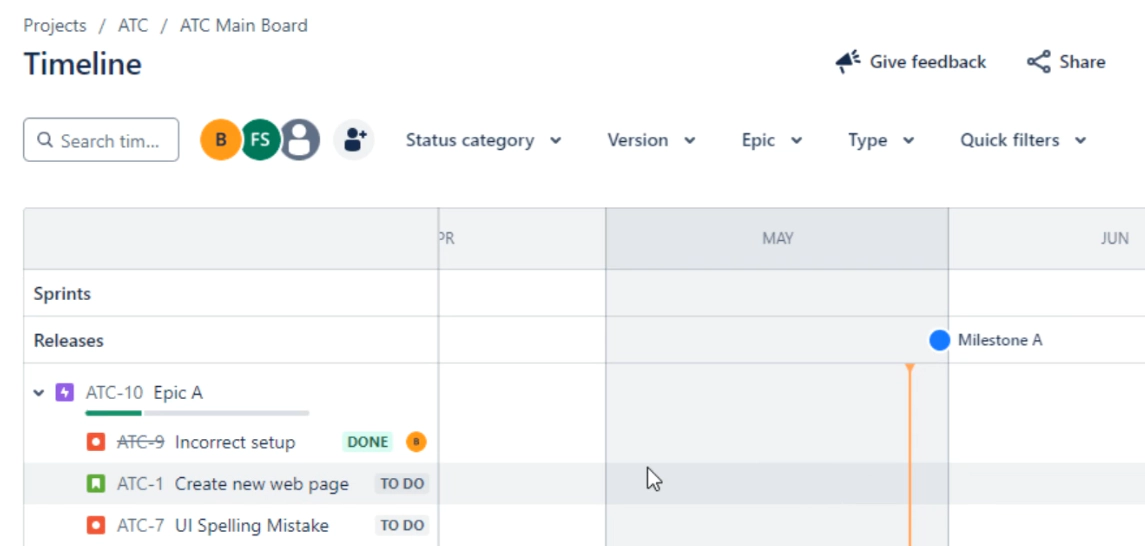
Teams can quickly check if they’re on track by seeing how much work is complete in each version, making it easier to adjust plans and keep projects moving forward.
Building Blocks
Components and versions are fundamental building blocks in Jira. They form the foundation for:
- Boards
- Roadmaps
- Reports
- Dashboards
Search functionality If you get to grips with these concepts and features they will help you:
- Keep your work organized
- Improve your teams level of coordination
- Help you track progress more effectively
- Enable the creation of meaningful reports
- And ultimately help you make better project decisions!
The key to mastering Jira is understanding these core concepts. Once you’re comfortable with projects, issues, workflows, components, and versions, you’ll have a solid foundation for using Jira’s more advanced features effectively.
In the next post and video we delve into Priorities and Labels.