
If you’ve been through the Building a Framework with TestComplete post you’ll understand what we’re aiming for with this TestComplete framework build. In this post we walk you through each step for this build.
Please note that we’re NOT listing every single detail about creating this framework. This post is designed to highlight the process and main components you’ll need to develop in order to implement a keyword framework. You will need to use your own skills, existing TestComplete knowledge and experience to fill in some of the detail.
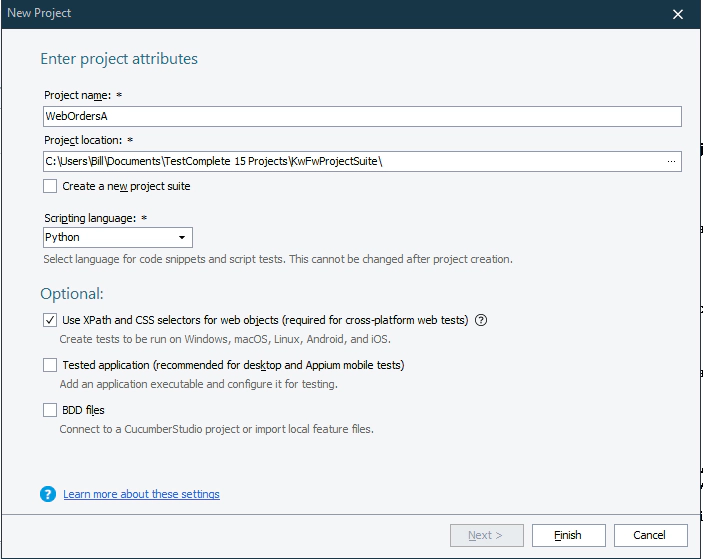
1. Create a new project
2. Add new folders
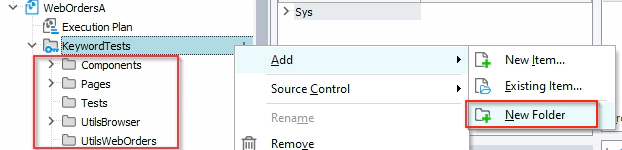
Folder to add
- Pages
- Components
- Tests
- UtilsWebOrders
- UtilsBrowser
3. Project variables
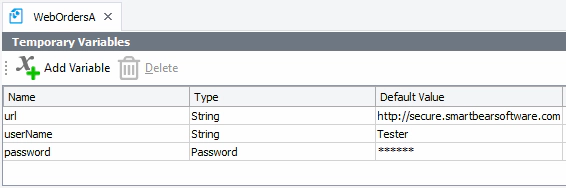
Variables to add
- url: http://secure.smartbearsoftware.com/samples/TestComplete15/WebOrders/Login.aspx
- user: Tester
- password: test
4. Create Browser Util Keyword Functions
Record and then edit Keyword Functions to create..
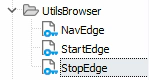
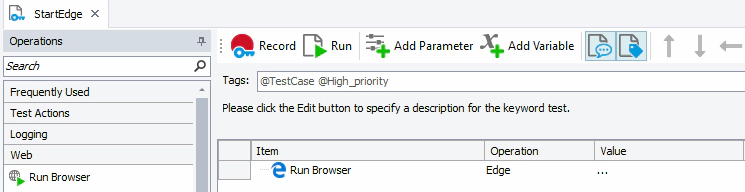
- Start Edge (‘Run Browser’ operation)
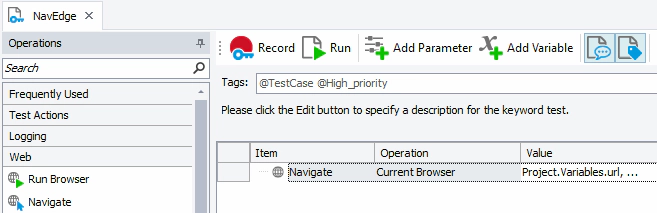
- Nav Edge
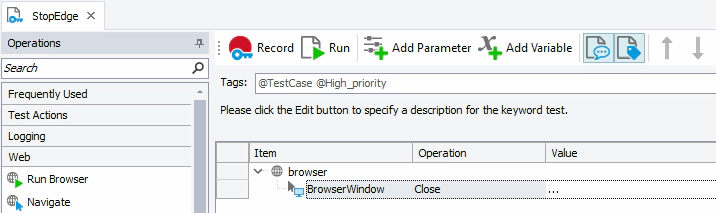
- Stop Edge (record close - adds to name map)
5. Execution plan
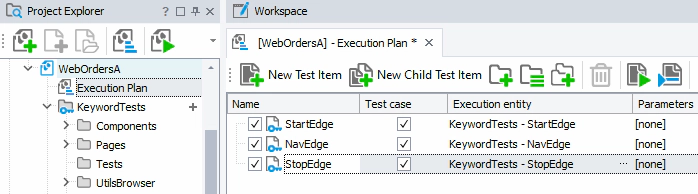
Add initial browser util Keyword Functions to the Execution Plan
6. Create a folder for each page
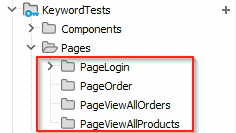
Folders to create:
- PageLogin
- PageOrder
- PageViewAllOrders
- PageViewAllProducts
Each folder for each page will contain the keyword tests … but don’t think of these as tests … think of them as ‘reusable’ functions.
G. Home Page Login - create keyword function Create the Keyword function “PageLoginLogin”. Note the naming convention … PageLoginLogin -
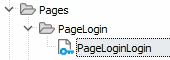
Record and then edit the keyword function that completes the Login process
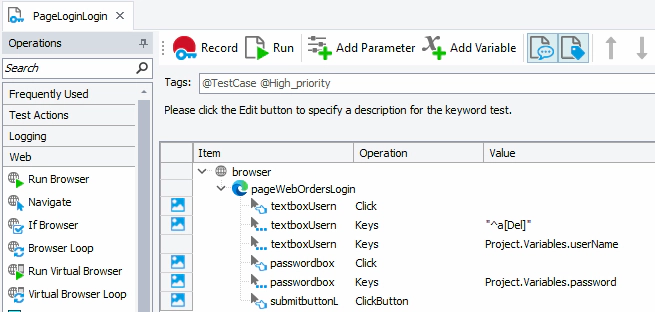
When cleaning up this keyword function after the recording consider:
- removing unnecessary navigation steps and any other superfluous steps
- check name map values look okay
- replacing hardcode values for the keys methods with variables
7. View All Orders Page - Create Keyword Functions
For the View all orders page create the following Keyword functions..
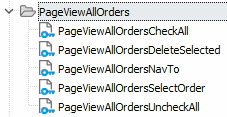
8. View All Orders Page - Create NavTo Keyword Function
Record the keyword function for navigating to the ‘View All orders’ page and clean up the recording so that it only completes the core function required
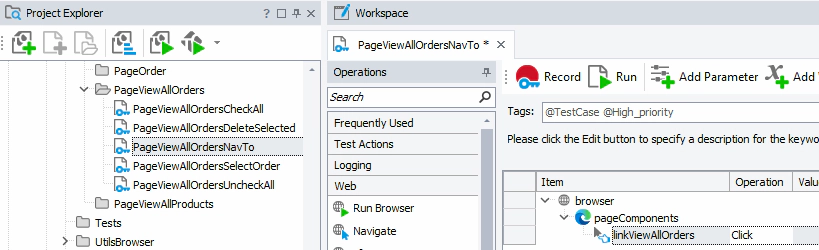
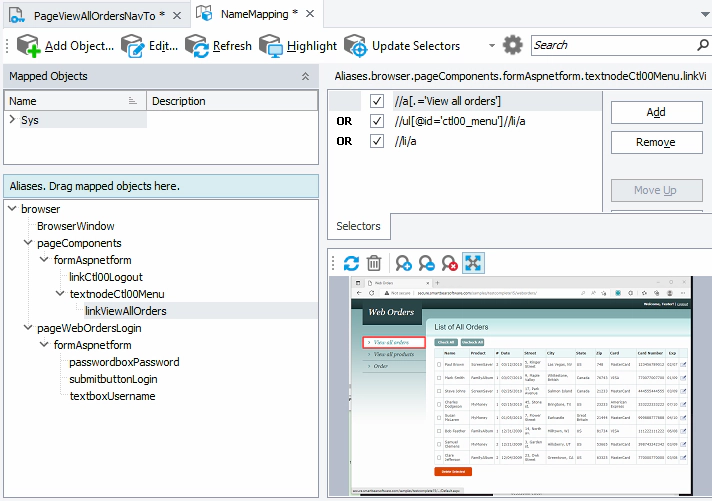
Test this function by manually navigating to other pages and then running the function to ensure that it always navigates to the required page. The ability to run this function reliably from any point in your script is dependent on your testing and the configuration of the namemap entry that identifies the ‘View All orders’ link. Your namemap should be looking something like this…
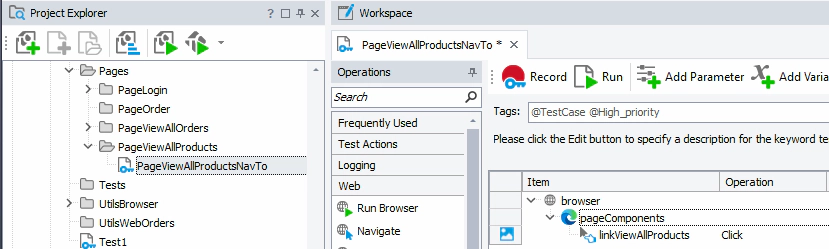
9. View All Products Page - Create NavTo Keyword Function
Record the keyword function for navigating to the ‘View All products’ page and clean up the recording so that it only completes the core function required
10. Orders Page - Create NavTo Keyword Function
Record the keyword function for navigating to the ‘Orders’ page and clean up the recording so that it only completes the core function required

11. Create the ‘Base Page’ folder
Create a new folder called the ‘Base Page’. This will contain Keyword functions that are common to all pages.
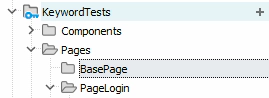
We’re borrowing the naming from the Page Object Model here and the concept of having a base page that all other pages inherit from. Whilst strictly speaking it isn’t possible to build this pattern in TestCompletes keyword tests it’s a good way to start thinking about things before moving on to coded Page Object Model frameworks.
12. Create and Record the Logout Keyword Function
Record the logout process and clean up the Keyword function
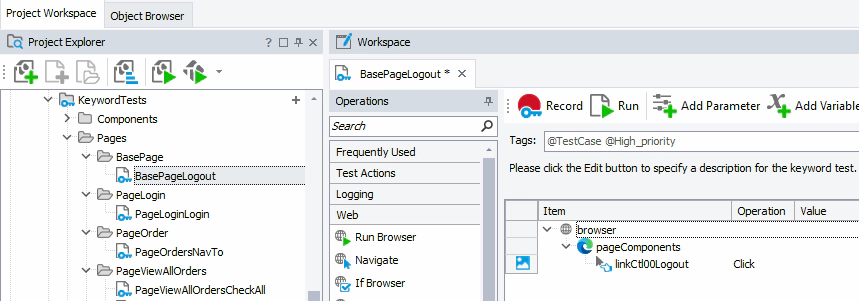
Logout is really an action or function that can be carried out on any page. So we’ll add it as a function on the base page.
13. Add to Navigation and Logout to the Execution Plan
Add these new Keyword function to the execution plan so that you can test the end-to-end process of logging in, navigating to all the pages and logging out again
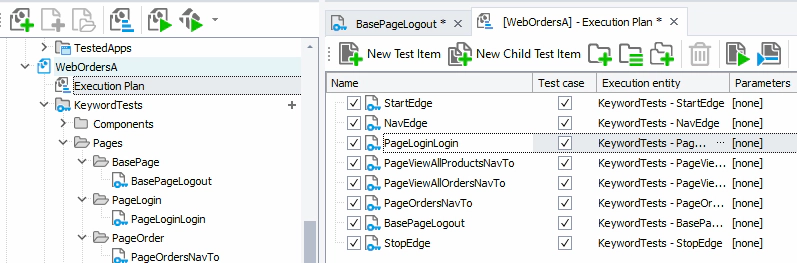
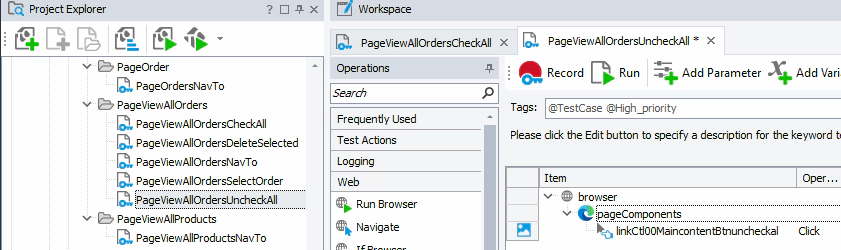
14. View All Orders Page - Create the Check and Uncheck Keyword Functions
For the ‘View all orders’ page create the following keyword functions
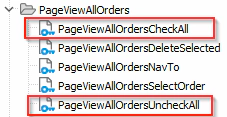
Open these keyword functions that we created previously and record/edit the functions…
PageViewAllOrdersCheckAll
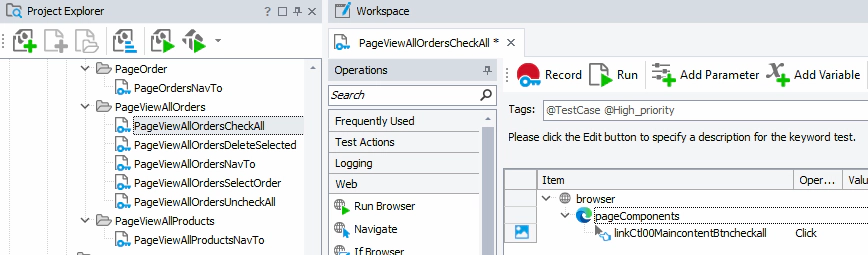
PageViewAllOrdersUncheckAll
15. View All Products Page - Create the Select Orders Keyword Functions
For the ‘View all orders’ page create the following keyword functions
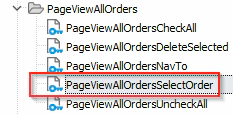
For now we’ll implement this so that it just deletes the first order record in the list. Later we’ll see how to parameterise this keyword function so that we can define a particular order to select each time we run the function.
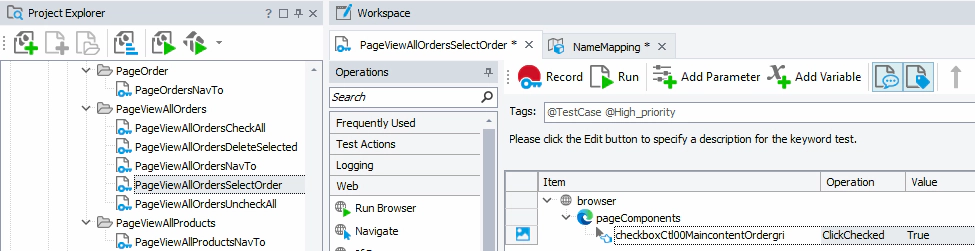
For now you will need to update the Namemap entry for this checkbox object so that we always select the checkbox in the first row (second row if we count the title row) of the orders list
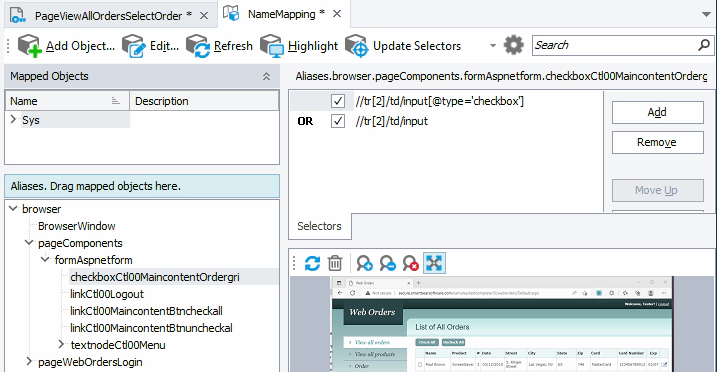
Note that the selector has been updated to look for a check box in “tr[2]”.
16. View All Orders Page - Create the Delete Selected Keyword Functions
For the ‘View all orders’ page create the following keyword function
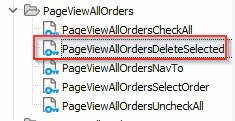
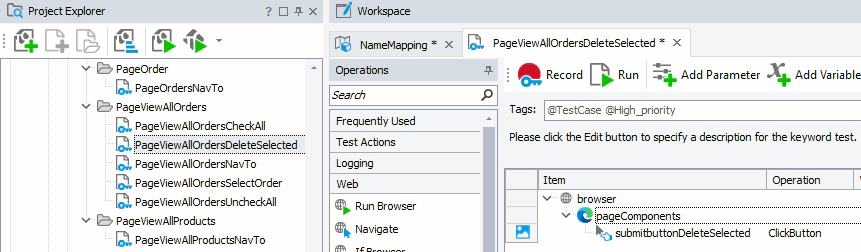
Just record the action of clicking the ‘Delete Selected’ button. We don’t need to record the step of selecting the record because we’ve implemented that as a separate keyword function.
17. Orders Page - Create the Enter ‘Product Information’ Function
For the Product Info section of the Orders page …
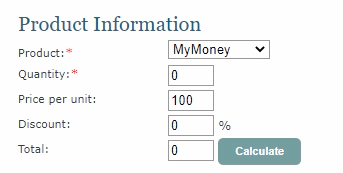
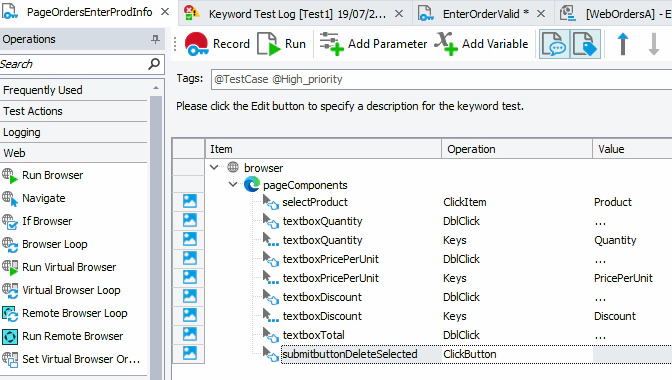
Record the function that enters this product information. Then add parameters so that we can provide different values at run time…
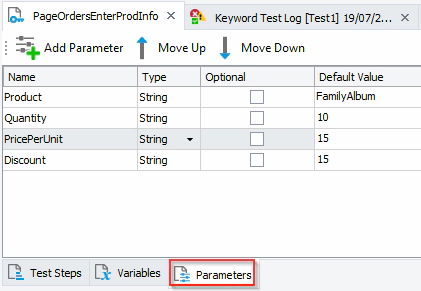
And configure the test steps to use these parameters…
18. Orders Page - Add Other Core Functions
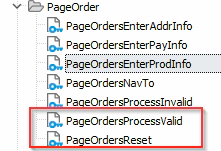
Continue to build out the required functions for the order page so that you have the following Keyword functions that deal with all the components on this page..

Add separate keyword functions that deal with the actual clicking of the ‘Process’ and ‘Reset’ buttons..
Once you’ve tested all these functions, you’ll have all the “functions” you need to enter Orders from our Keyword tests.
Now it’s time to start building out our tests….