
Module 6 - Using Source Code Control to Manage Our Test Artifacts
In this final module we’re looking how we can best control all of our test resources and files. We’ve created Selenium, SoapUI and JMeter tests. The files for all of these tests are now scattered all over our distributed test automation environment. Not great for colloaboration, maintaining versions and backups. Down right dangerous really.
What we need to do is pull all of our files together into one central repostiory. Well, with the tool we’re using, Git, it’s more a central distributed repostiory. ‘Central distributed repository’ sounds like a bit of a contradiction. We’ll explain that contradiction as we go through this.
Anyway, we’ll be running up an Amazon Liniux instance and installing the source code management tool, Git. Then on all our client machines and our master Windows machine we’ll install the Git client. This will enable us to store and maintain all our test files across our automation network.
To configure this we’ll need to cover 5 key areas:
- Setting up and configuring our Git Source Code Control server
- Configuring our Source Code Control clients (both Windows and Linux)
- Adding our test files to our Git Source Code Control repository
- Updating our Jenkins jobs to use test files from the Git repository
- Modifying our test files and updating files in our Git repository
With all of this in place we’ll have the last piece of our jigsaw complete. We’ll have the Git component implemented as shown in our schematic here:
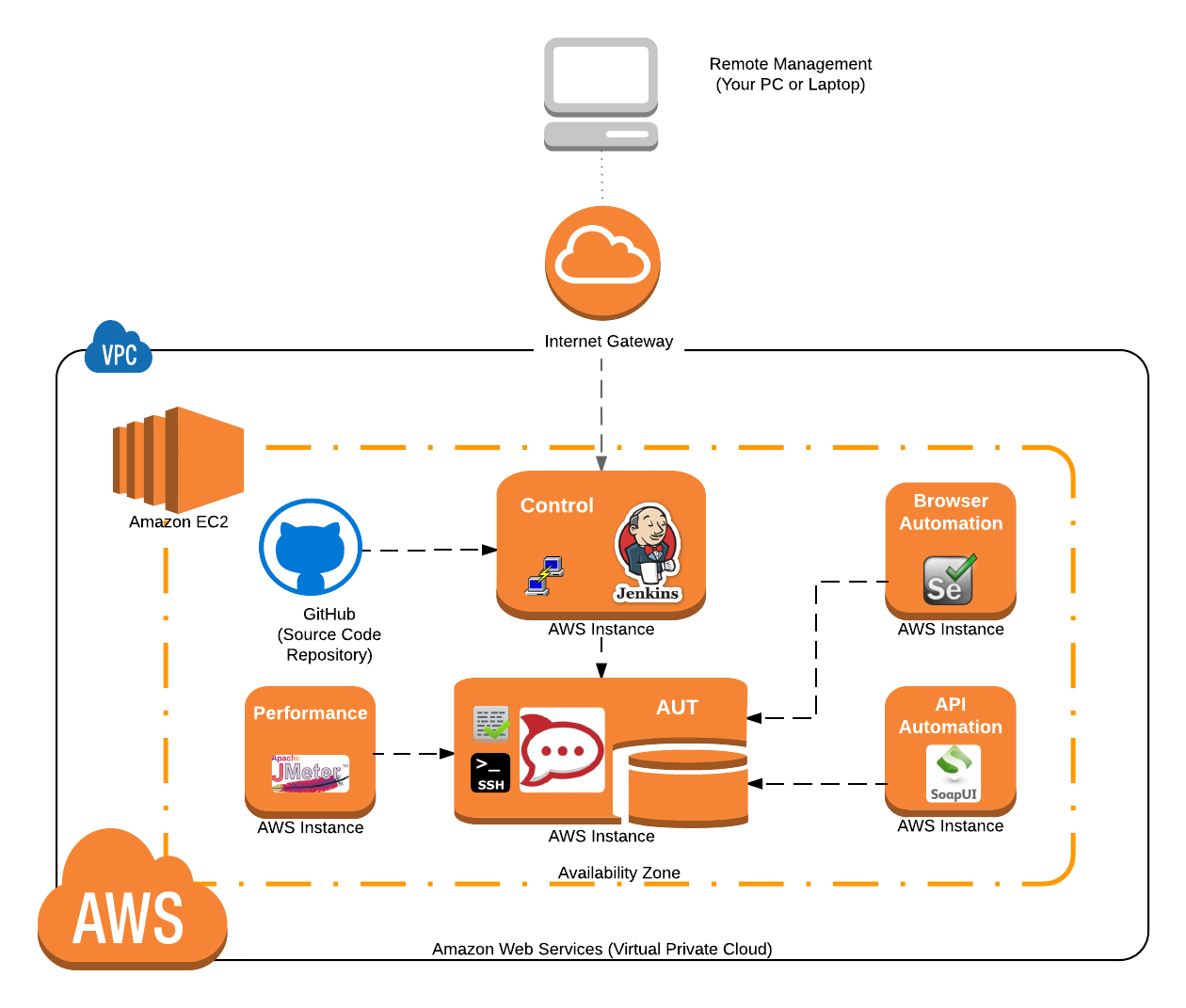
The important concept to grasp here is that we’re managing our ‘test’ source code. We’re not managing our ‘development’ source code. The development source code is managed by our development team. We need to meet the same levels of good development practice that our dev team employ. And that means we’re responsible for managing our test artifacts and source code properly.
What You’ll Learn
The aim is to pull all our test files together and manage them effectively from one location. That means pushing any changes to this central location or “repository” as it’s better known. This means getting our Jenkins jobs to automatically use the test files stored in this repository. And it means learning to collaborate on changes to test files by making those changes easily accessible to everyone in your team.
- Part 1: Sart a Unix Ubuntu Git SCM Server
- Part 2: Setup the Security Group and SSH Connection
- Part 3: Install Git
- Part 4: Configure the Git User Account
- Part 5: Configure the Git Server
- Part 6: Commit Our Selenium Source Code to the Git Server
- Part 7: Commit our Selenium Script to our Git Repository
- Part 8: Updating our Jenkins Job to Use the Git Repository
- Part 9: Modify and Commit our Selenium Scripts from another server
The concept then is that every test file we create needs to be stored in our Git source code repository. That means, from our SoapUI, JMeter and Selenium development environments any code we write needs to be ‘pushed’ and stored on our Git server. When ever Jenkins comes to run a job it will be responsible for ‘pulling’ this source from Git server. This way the Jenkins server will always be picking out the latest test source files that anyone in our test team has checked into the Git repository (assuming our test team are diligent about pushing their changes to the Git repository that is).
What Jenkins actually does, when it initiates the jobs on the remote machines, is get it’s Jenkins slaves to pull the latest version of the test files from the Git repository. So whilst we’ll configure the jobs on the Jenkins server to use Git it’s actually the Jenkins slaves that are responsible for pulling our test files from the Git server.
All that we’re aiming for though is making sure everyone, including Jenkins, is using the right files from the right location. To goal to ensure that we are developing our tests in a collaborative environment where we’re using the right versions of the test files in our test environment and we have all of our test artifacts and files safely stored and backed up.
The SCM Tool We’ve Chosen
As we’ve already mentioned we’ve chosen Git. Git isn’t an “unpleasant or contemptible person” as the dictionary definition points out. Git is version control system that will store all our test artifacts or files. Git maintains a changes to those files over time so that we can revert to previous versions if we need to. All our changes are tracked so that we can see what changes were made, when and by who. Why’s this important?
Well take that scenario where your colleague makes a small innocuous change to a Selenium script. Nothing radical but when you come to run the latest version of the this automation script nothing works anymore. Well with Git we can see exactly what the change was and revert back quickly to the working version.
Why have we chosen Git in particular? Well it’s the de facto open source, source code repository tool. It’s one of, if not ‘the’, most popular source code control tool in use today. It’s an open source project that’s still actively maintained even though it was started back in 2005. Not only that, but there’s a massive amount of material (free books, free videos, etc) on the web to help you learn more once you’ve finished learning the basics here.
Prerequisites
Make Sure you have your Private key (.pem file)
Back in Module 1 we created our public and private key pairs? Well at that stage you should have saved your private key pair .pem file (e.g. FirstKeyPair.pem) file. You’ll need this private key when configuring Jenkins later.
If you don’t have have this private key you can go back and create a new key pair. Much easier if you can find the one you created in Module 1 though.
If you’ve followed upto Module 4 so far you should already have your Amazon Virtual machine environment up and running along with Jenkins, Selenium and SoapUI. This existing setup gives us the 2 machines we’ll need to use in this module.
- Windows Master machine: this is running Jenkins and controls all our other machines (including the installation of the AUT and the execution of our Selenium tests). This machine will be responsible for kicking off our SoapUI API tests
- Linux Client machine: this Ubuntu linux machine is run up on demand by Jenkins and then has the AUT (Rocket Chat) automatically installed on it. This machine provides the web interface for the Rocket Chat application and the API for the Rocket Chat application.
Check the Status of your AWS Machines
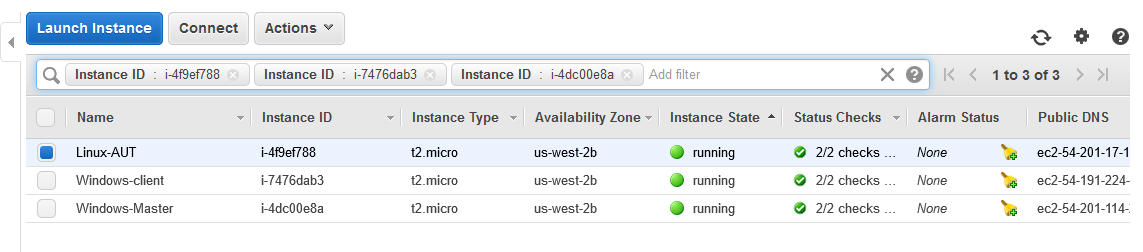
Your Windows Master machine should already be running. The Linux machine (running the Rocket Chat application) may or may not be running. The Linux machine is run up automatically by Jenkins so it’s fine if it’s not running right at this moment. Whatever the state of the linux machine you should see the Windows machines status in the AWS console as follows:
Open an RDP Terminal Session on the Windows Master Machine
With these Windows machines running you’ll need to open an RDP session on the Windows Master machine. This is where we’ll configure Jenkins.
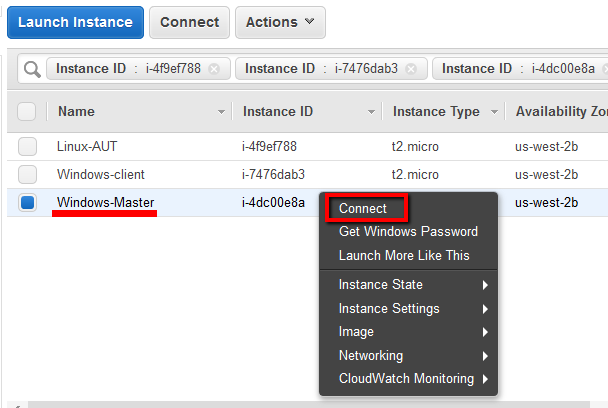
Then enter the password (you may need your .pem private key file to Decrypt the password if you’ve forgotten it) to open up the desktop session.
Start the Linux Client Machine
IF the Linux machine isn’t running with the AUT installed then we need to start it. We can get Jenkins to do this for us. Once you have an RDP session open to your Windows Master machine you should have the Jenkins home pages displayed. If not open a browser on this machine and go to this URL:
> http://localhost:8080/
From here you can start the ‘BuildRocketChatOnNode’ job and start up the AUT.
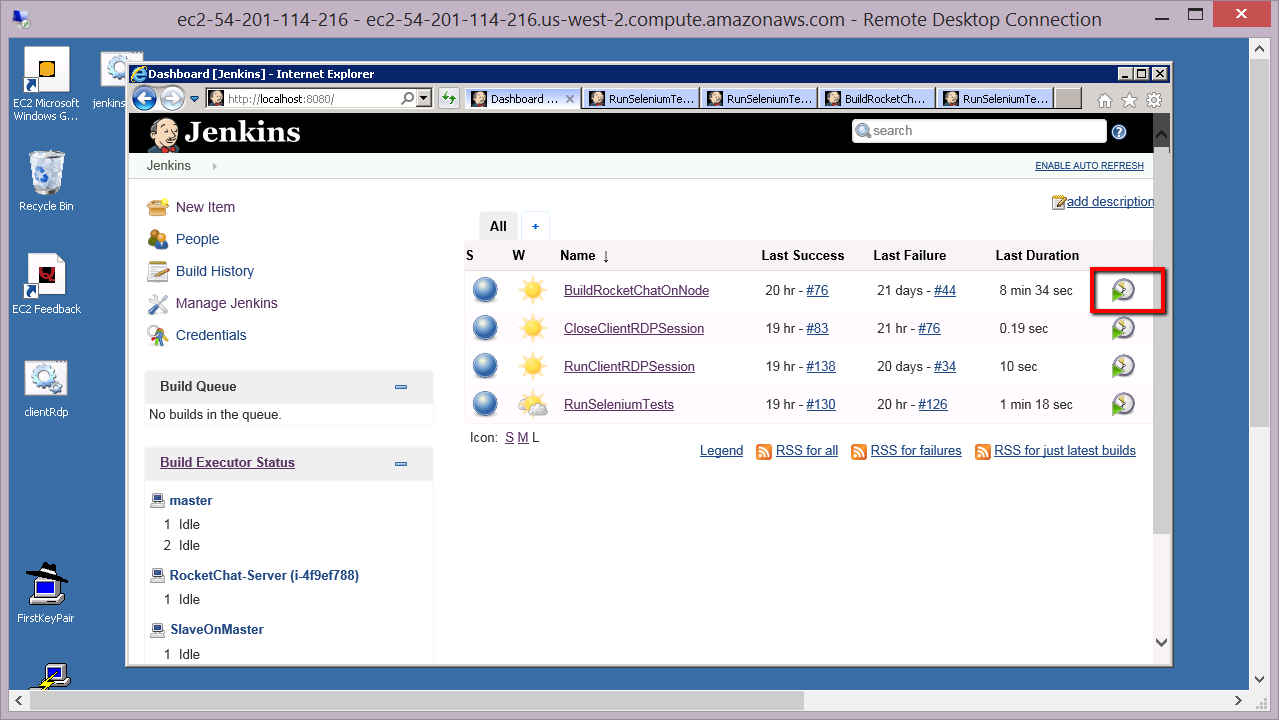
Once RocketChat is up and running we’ll need to know the host name that Amazon has given our new Linux instance. We save this in our ‘publicHostname.txt’ file that is archived as part of our build job. So if you go to this directory using Explorer
C:\Program Files (x86)\Jenkins\jobs\BuildRocketChatOnNode\builds\lastSuccessfulBuild\archive
You should find this publicHostname.txt file…
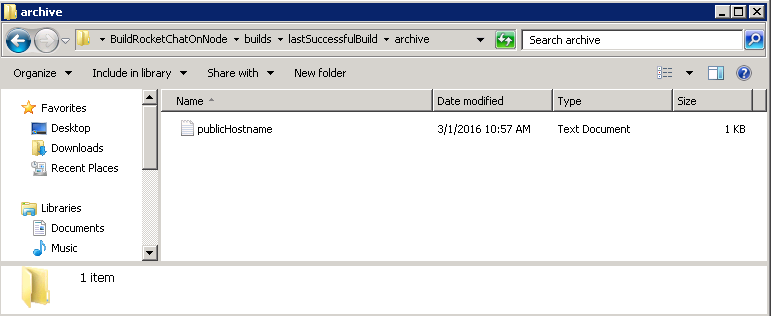
Open this with notepad and make a note of the hostname. We’ll need this while we configure our performance tests.
At this point you should have…
- A copy of your your Private key (.pem file)
- An RDP session open to your Windows Master machine
- Your Linux Ubuntu machine running with Rocket Chat installed
From here we’ll setup a new Linux/Unix Ubuntu machine that will hold our Git repository.
Part 1: Sart a Unix Ubuntu Git SCM Server
First we need a Linux AWS server that will run our Source Code Management (SCM) tool Git. We’ve done this a few times before now so we’ll step through the AWS Linux server configuration quickly.
The other Linux machines we’ve setup in this course are designed to be started automatically by Jenkins on demand. Slightly different with this Linux machine. We need a machine that’s not started by Jenkins, that’s always on, has ??? storage (not emphiperal?) and is protected from being shut down.
- In the Amazon AWS interface launch a new instance (click on a Launch Instance button). Select the ‘Free tier only’ option and configure this new AMI with the following parameters:
STEP 1 : Amazon Machine Image AMI ID: ami-9abea4fc *1
STEP 2 : Instance Type Instance Type: T2Micro
STEP 3 : Instance Details Select all the defaults and Protect against accidental termination:
*2 STEP 4 : Storage Type: Root Size: 8GiB Volume Type: General Purpose SSD Delete on Termination:
STEP 5 : Tag Instance Key: Name Value: Unix-Git
STEP 6 : Security Groups Select an existing security group:
Security group names: Unix-AUT, default
*1 - note that the AMI may be different for you. This depends on which AWS region you’re using. Of course Amazon may just have removed this AMI and added a new one with a different AMI ID. You’ll need to search in your AWS console for something similar to “Ubuntu Server 14.04 LTS (PV),EBS General Purpose (SSD) Volume Type. "
*2 - on Step 3, ‘Configure Instance’ details you’ll see a parameter that allows you to enable termination protection. Just need to make sure this is checked so that you prevent anyone terminating our server. It’s going to be holding all our test source which is critical to everything.
Once you’ve clicked the ‘Review and Launch’ button you should see a configuration summary page like this:
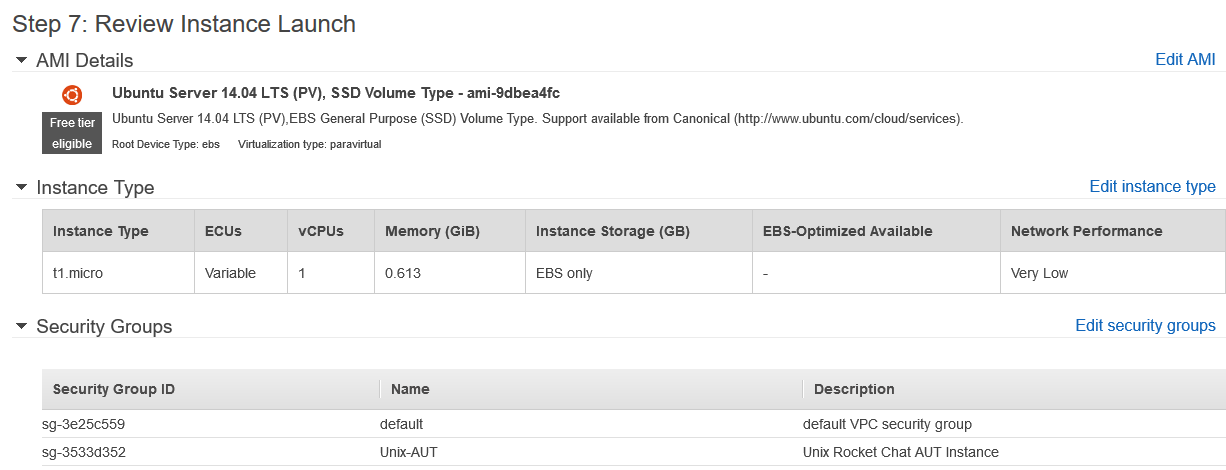
When you ‘Launch’ this instance you’ll need to configure the SSH security key pairs.
- Configure the SSH security key pairs by selecting:
Choose an existing key pair
So back in module 1 we created an SSH security key pair. You should have this saved safely somewhere (see the Prerequisite section in this module for more info on your Key Pairs). As you need to select it on this dialogue box:
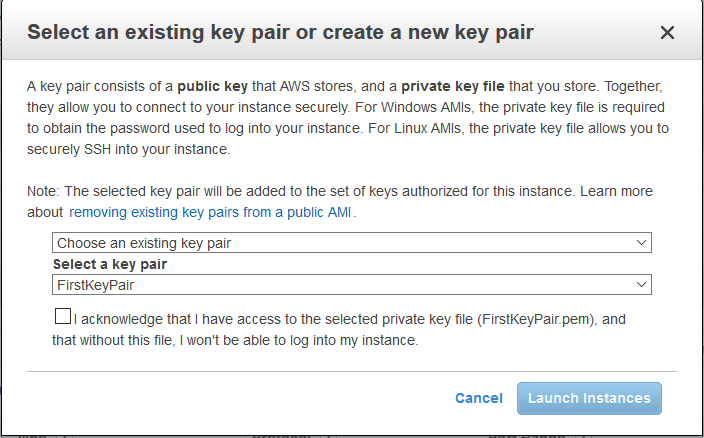
This is the key pair AWS created for us back in module 1 and that AWS stores and uses. We need to have access to the .pem file that was created as part of the initial setup back in module 1. The important point, as AWS put it, is:
“I acknowledge that I have access to the selected private key file (*.pem), and that without this file, I won’t be able to log into my instance.”
You just need to make sure you can find your copy of your *.pem file. Assuming you have it check the ‘acknowledge’ check box and click the ‘Launch Instance’ button.
- Check your new Linux instance is running.
Back on the AWS EC2 dashboard you should see your new instance running. You can search based on the name you gave the instance if you like.
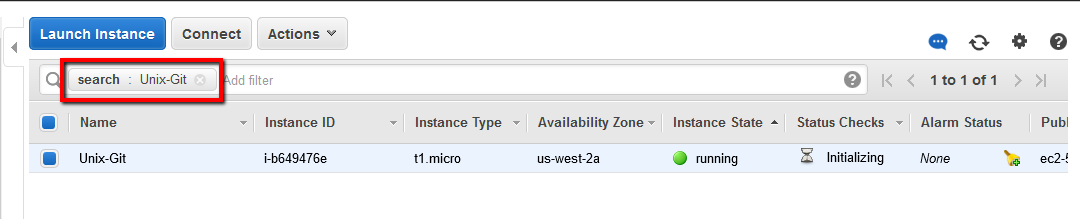
Once this is running we can check the security groups and make a connection using SSH.
Part 2: Setup the Security Group and SSH Connection
Now we have our Unix-Git Source Code Control (SCC) machine running we need to make sure the AWS security settings will let us connect to it and configure an SSH terminal connection.
- First then the AWS Security Group Configuration.
Set up the security group by first checking that this linux machine has the right security group assigned to it. You can do this by selecting the host in the AWS EC2 console.
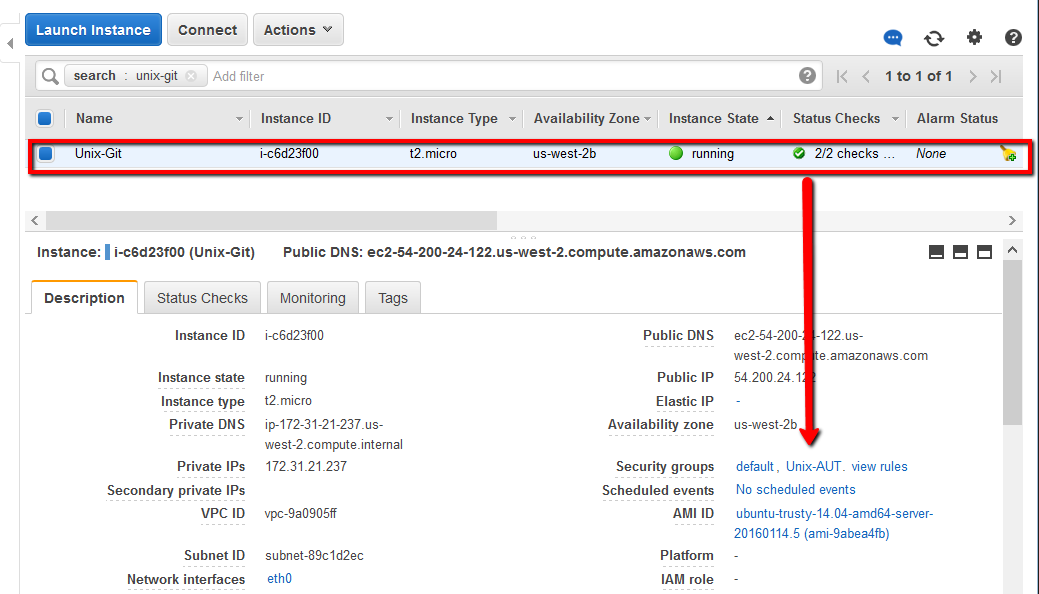
Click on the ‘Unix-AUT’ link which will take you through to the security groups page for this specific group. Then click on the ‘Inbound’ tab.
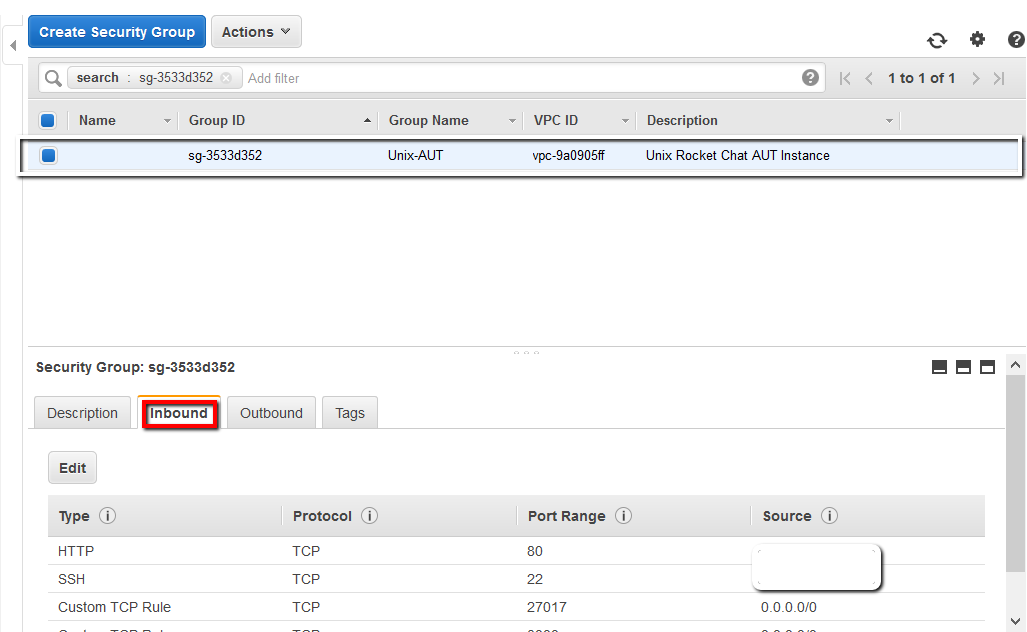
At this point we can ‘edit’ the security group and add a new rule:
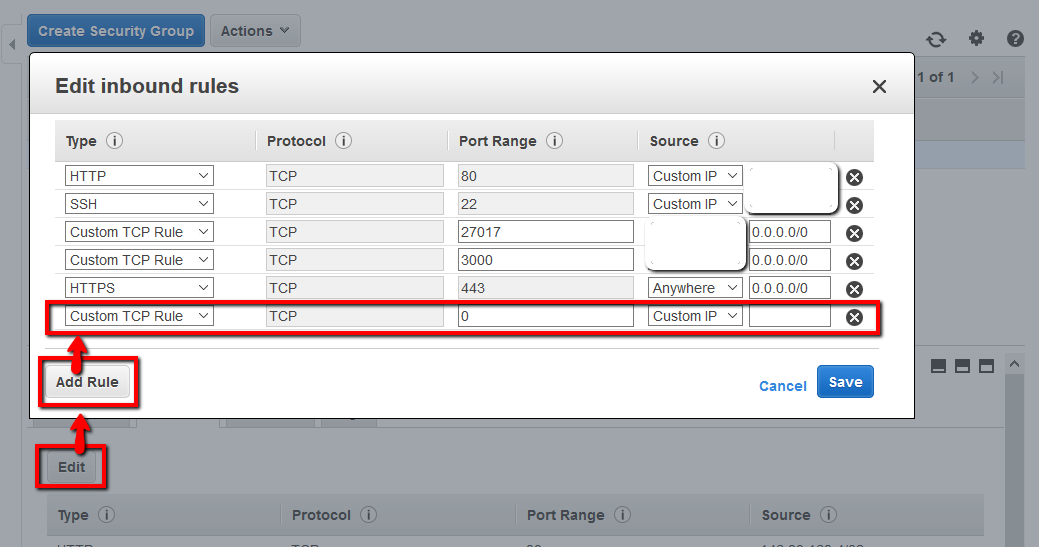
This rule we’ll configure with the SSH port from our local laptop/desktop machine. So select these parameters:
Type: SSH Protocol: TCP Port Range: 22 Source: My IP
Which should give us something like this

Once we have this we’ll have access to our Linux machine direct from our laptop/desktop using the AWS Java SSH Client (MindTerm).
- Second we need to connect using an SSH terminal.
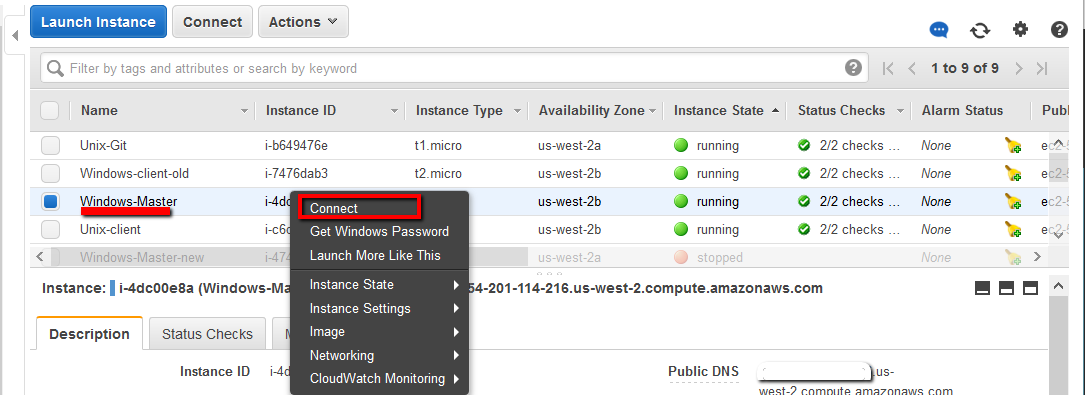
We’ll make this connection using an in-built SSH client (MindTerm) that is integrated with the AWS management console. To connect using this method, first go back to your list of AWS instances and then right click to select ‘Connect’
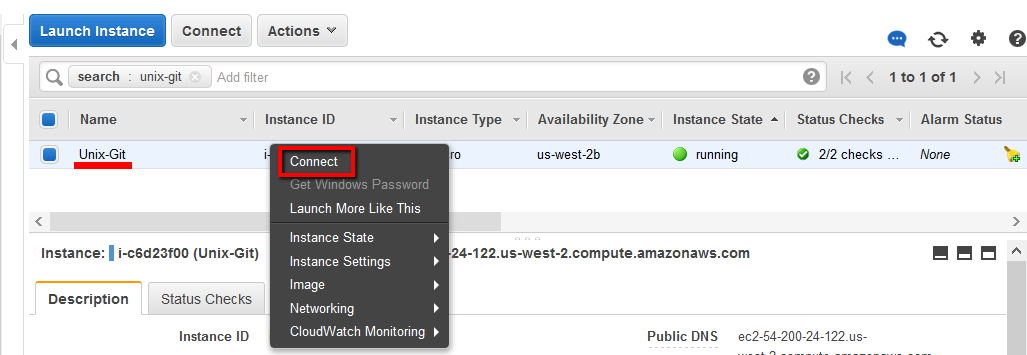
Once you see the connection dialogue box you should select this option:
A Java SSH Client directly from my browser
You will of course need Java installed on your laptop/desktop machine in order to follow through with this. Once you have selected this you just need to find the ssh key you created way back in Module 1. Should be a file you saved with a name like ‘FirstKeyPair.pem’. Everything else can be left as defaults giving you something like this:
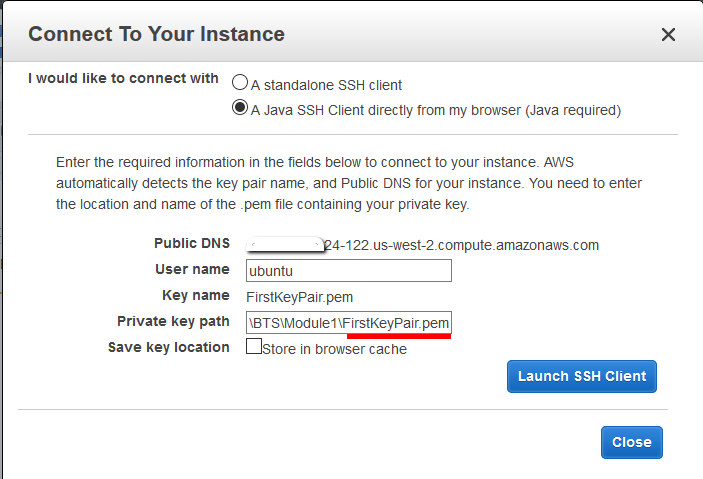
Once you click on the ‘Launch SSH button’ you should see a window like this open up
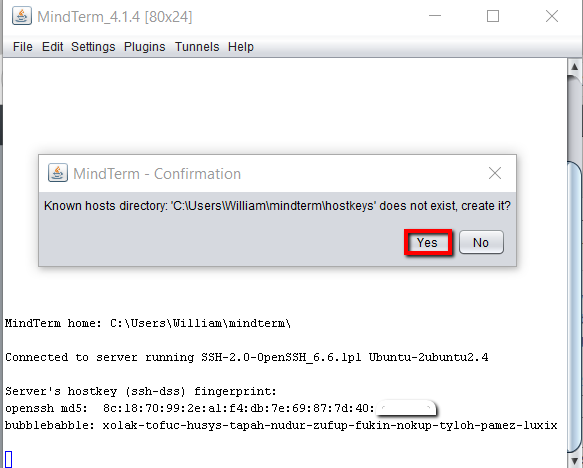
Of course this is the first time we’ve connected to this linux server from our laptop/desktop machine. So SSH on the Linux machine warns us that we’re not a ‘Known Host’ and looks for confirmation that we want to add our laptop/desktop as a ‘known host’. We just need to click ‘Yes’ for this.
If you run into any error messages or have trouble connecting at this stage just close the terminal window and open it again. Second time round the connection usually works without any problems.
Now we have the Unix-Git machine running and we have a shell SSH connection. Next step is to configure our Git server that will run on this machine. Once configured we’ll be able to store our test cases on this server.
Part 3: Install Git
We have our server up and running with an SSH shell connection open. Just need to install Git now. Pretty straightforward. Just run this command:
sudo apt-get install git
Select all the defaults as you are prompted.
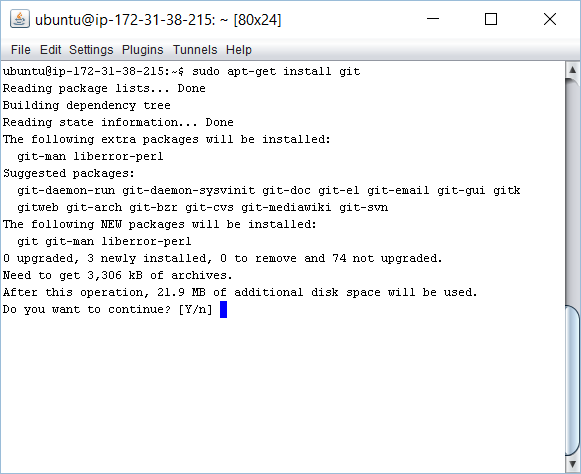
This should complete cleanly having installed all the required packages:
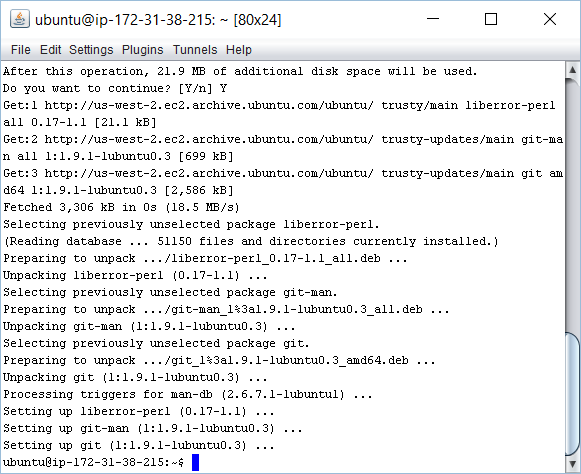
And that’s it. Simple.
Just need to configure a Git user account and set the Git server up.
Part 4: Configure the Git User Account
To configure our Git server we’ll need to run through a few steps.
- configure a Git user
- set up ssh for that user
- create and store this users SSH key pair
- copy the private key pair somewhere safe
- install the private key on the Windows Master machine
- install the private key on the Windows Client machine
What are going to have is a user defined on our new Git server. This user (called ‘ae’ for automation engineer) will be setup with SSH (Secure Shell) access. We’ll be able to have all our clients of this Git repository running with the SSH private key so that they can login to this Git server without having to authenticate with username and password details. When these client machines have direct access they will be able to check out and check in code (e.g. our Selenium, JMeter and SoapUI scripts) directly to this Git server. In order to do this we need to setup this user and SSH. The next 5 steps take you through this process.
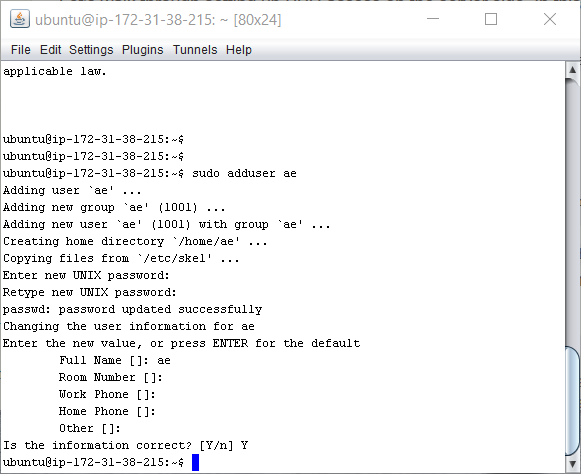
- First then, let’s configure a Git user from our SSH terminal that’s running. Enter the following commands which will create a new unix user ‘ae’ (which stands for automation engineer):
sudo adduser ae
Enter a password (one that you can remember) so that you have the following in your SSH terminal
- Then we can configure SSH by entering the following commands:
su ae cd mkdir .ssh chmod 700 .ssh touch .ssh/authorized_keys chmod 600 .ssh/authorized_keys
Once you’ve run through these commands your SSH terminal should look something like this:
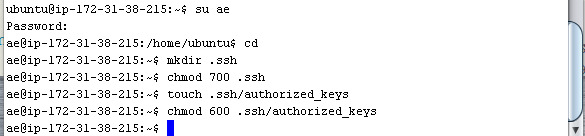
What this set of commands does is create the directory that SSH will need for our Git connections. Then, with the ‘chmod’ command it makes sure the permissions for the SSH director are set for only the user (ae) to have access. SSH is very sensitive about permissions.
Then we create a new file called ‘authorized_keys’ which is where we’ll store our authorized key for this ‘ae’ user. Again we modify the permissions of this file so that only the ‘ae’ user has access to it.
- Now we can create an ssh key for this user. The command we use for this is ‘ssh-keygen’:
ssh-keygen -t dsa
This takes you through a set of questions that are need to create this ssh key pair.
Enter file:
Enter passphrase: *1 Enter same passphrase: your passphrase>
The passphrase you choose is used to protect the private component of the ssh key pair. Remember that an SSH key pair comprises of private and public components. The private component you keep safe, never reveal and never send over the internet.
Once you’ve completed this step you should see the following:
Your identification has been saved in /home/ae/.ssh/id_dsa. Your public key has been saved in /home/ae/.ssh/id_dsa.pub.
What we need now is to copy the private component back to our own laptop/desktop. We’ll need to install this private key on our Jenkins Windows master machine later. This way our Jenkins machine will be able to use this user account with the SSH connection to get all our source code from this Unix-Git machine.
- We now need to add the public key (id_dsa.pub) to our authorized keys file.
We can add this key with the following commands
cd ~/.ssh cat cat id_dsa.pub > authorized_keys
This cat command kind of prints the id_dsa.pub file but sends that print out to the authorized_keys file. With this public key installed any machine connecting that has the private key installed will be allowed to authenticate directly with this machine.
Next then we need to store a copy of our private key pair so that we can use it later.
- Display the private key and copy it somewhere safe.
If we use the Unix ‘cat’ command to read and display our private key we can then copy the text locally. So run this command:
cat /home/ae/.ssh/id_dsa
You should see something like this
-—-BEGIN DSA PRIVATE KEY—– Proc-Type: 4,ENCRYPTED DEK-Info: AES-128-CBC,3A4052FF706445E55E0BE77A36560A28
2wqLvMXmVhctPSXasdfqerueTrEOB00V/b3Lv5aCdXLO6DSD3KCoNItkOhcW0ghzy skFYV8nhF37ZkZmAj+//x8HKLA0xMerqewreqwrdso1nxELEh4ZWCPhGf9kzP5+PN XoaLjuBviaQUMH8rhIHbbk+WobMCO74lB9zzq9G7ppkTcsA0AICbALvt3B+C6z9r oIY7L/nFtLfiIjaXfEW3Q8Wx/1E8hWBA1u+bPNYg30hKOUg0ucvzf5GOHSsZr17q F8LR4UTRQC3/U97BHtc/LsvtN4bxl/qlQcgFnCgH5HWOtOB9hqfd3hAEQufBTclZ oqAXIBHBhyRXwkQ2asdfaLWJa5LVBqZp+hptGwTJJWAAQvDckZ6hcGBr3tPQbaPp JqeFgXmDUg18vzUT3eBfwsvHBpMfIs1buGUWHXoLmRZohDYZuyN29BE5b55GnQm1 525s6jPXKi+Xgr67adsfdOyZBFyJi6i6SSicyaH1STwc1GkTm6tx4EOalttpR0cd S2so71kldWWGXreJbqsZqqweref0hXErLuEwga+W5G5x9Wd3cpHdknzeDwQa8CTo w+4APOiCUbsSQ6hoInM6zQ== —–END DSA PRIVATE KEY—–
Copy this text, paste it into Notepad (or any text editor) on your local laptop/desktop machine. Call the file something like:
aeKeyPair.pem
Save the file and please try not to lose it. We can get it again from this Ubuntu machine if we need but it’s easier if we save it somewhere safe. JUST DON’T foget the passphrase you used. That’s the most important point.
- Now we need to install this key on our Jenkins windows master machine.
Once we’ve installed this key our Jenkins windows master machine will have access to the ‘ae’ user and the Git repository that will store all our automation scripts. Next step then is to open the RDP session to the Windows master machine.
On the desktop of this master windows machine create a new text file.
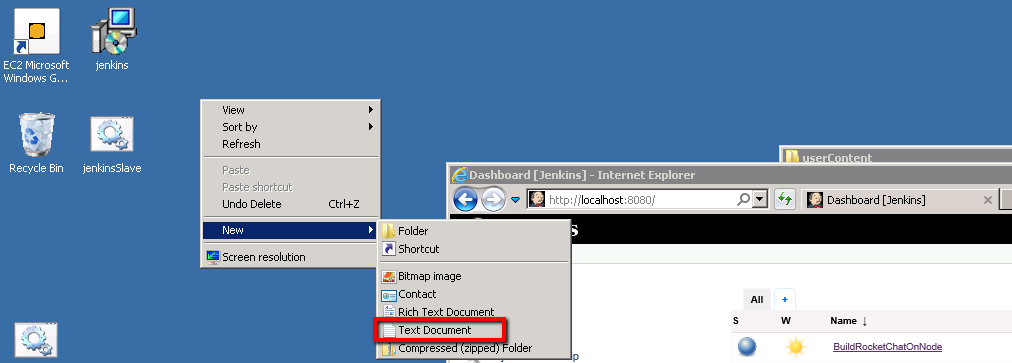
Name the file:
aeKeyPair.pem
and open it in notepad…
Once opened we need to copy in our DSA private key details. Open the aeKeyPair.pem file that’s on your laptop/desktop (or on the Ubuntu server) and copy/paste the content into notepad on the windows master machine.
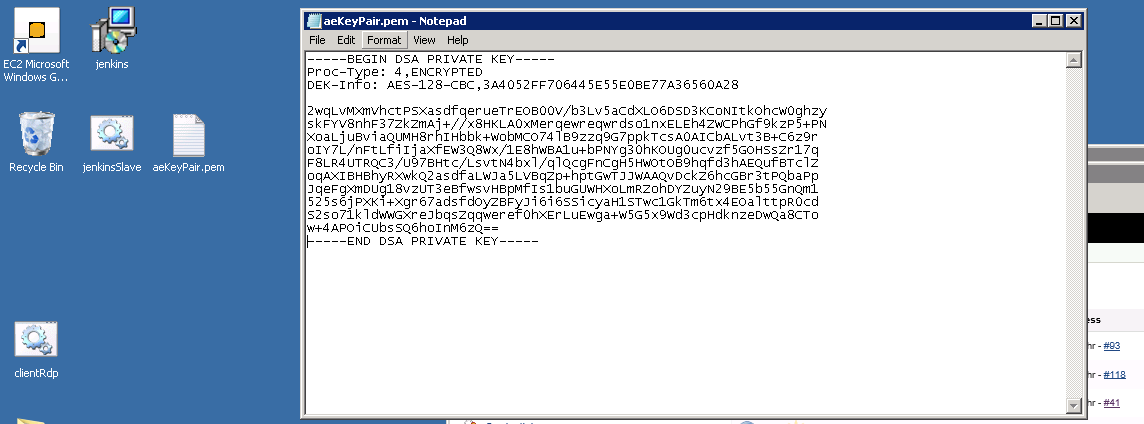
Save this file. We need to convert this into a format that Putty (our SSH client tool running on our Windows master machine), understands. So open “PuttyGen” from the start menu: 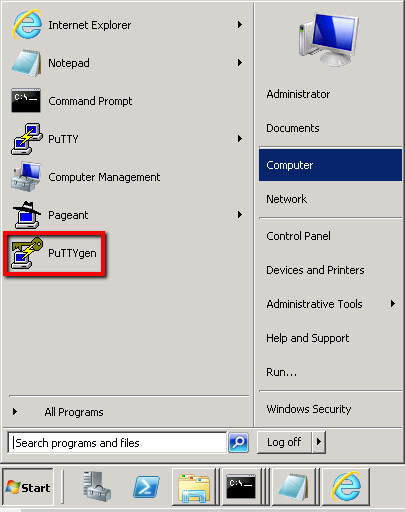 We need to import our .pem file into PuttyGen now:
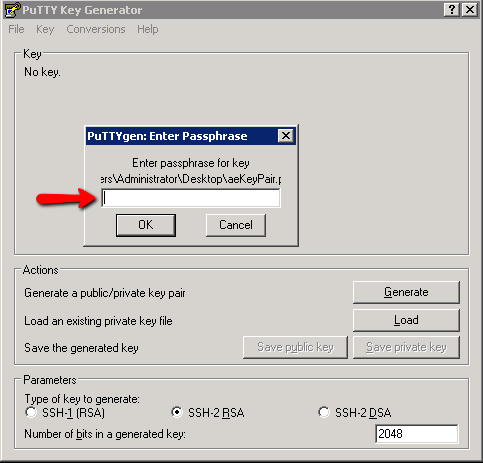
 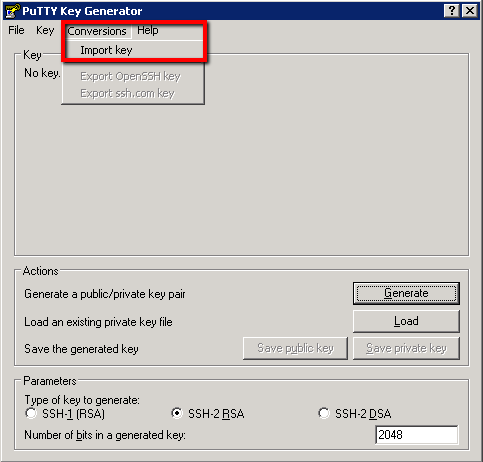 And then select the aeKeyPair.pem file that we’ve just saved to the desktop. At which point you’ll need to enter your Passphrase … hope you can remember it!
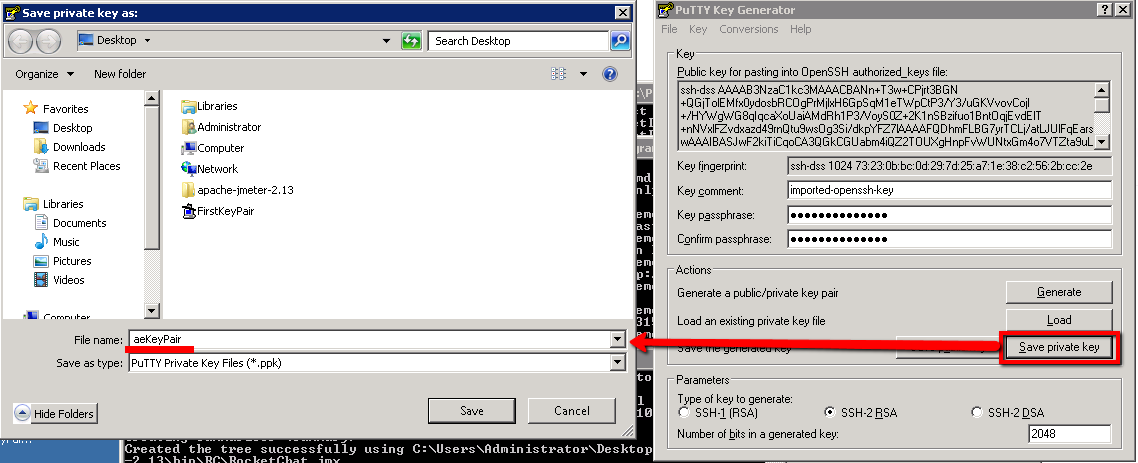
Then click “Save Private Key” and save the new .ppk format file as:
aeKeyPair.ppk
Which should take you through this step:
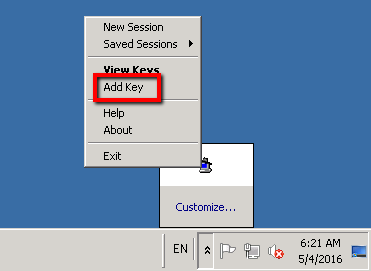
Close PuttyGen and find the Putty Agent that should be running in your task try. Right click on this and select ‘Add Key’
At which point we need to select our new ‘aeKeyPair.ppk’ file:
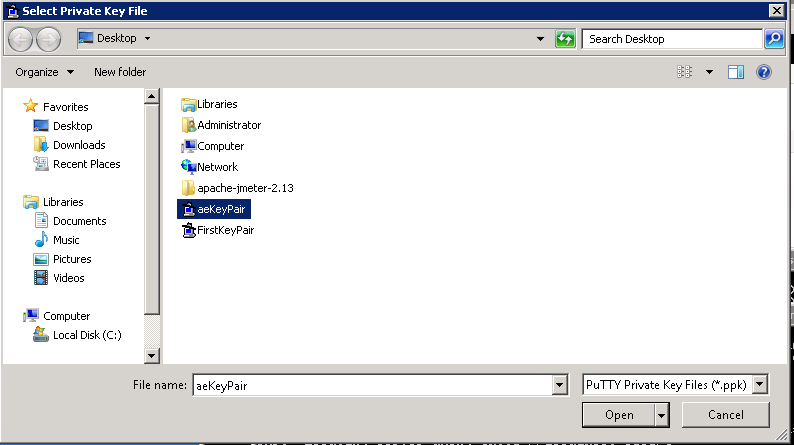
Enter your Passphrase and we should be ready to configure our new Linux Ubuntu machine as a new Putty client. So open Putty again and select ‘New Session’ this time round:
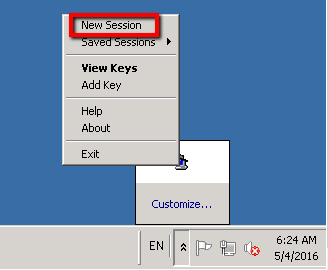
Now we need to configure our new Unix-Git machine as a new Session in Putty. First you’ll need to find the ‘Private IP address’ from your AWS terminal:
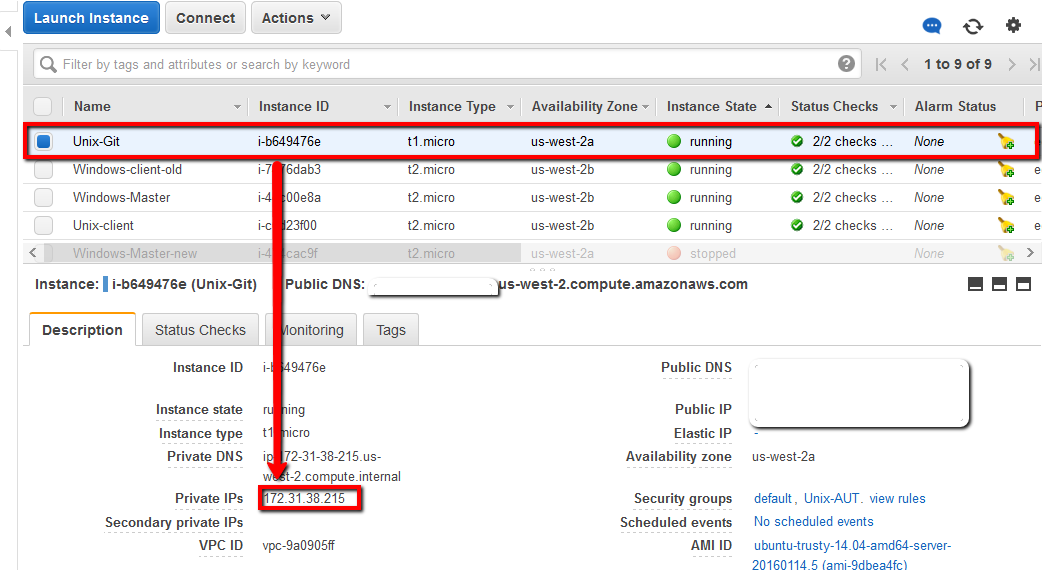
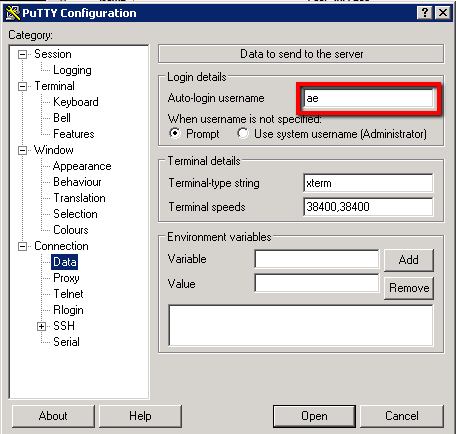
Jot this IP address down and configure the following in Putty:
Connection -> Data -> Auto-login Username: ae
Session:
Saved Sessions: Unix-Git
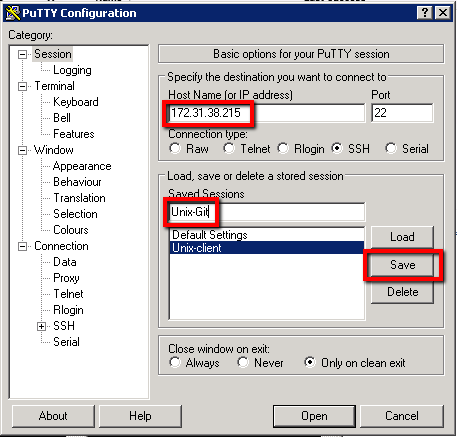
You have to be careful here that you click save and not load. If you click load it loads up another sessions details, without warning, and you lose your new session details. So save this. Then click on the new ‘Unix-Git’ entry and select ‘Open’
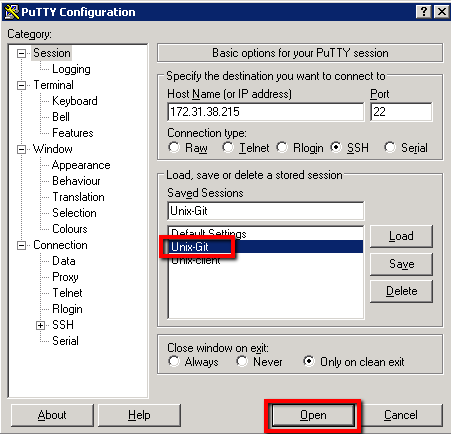
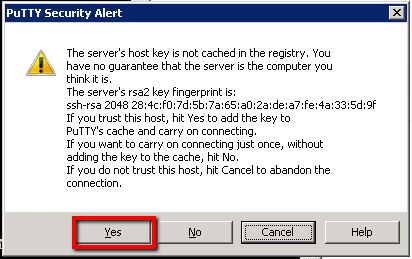
Accept the security warning by selecting the ‘Yes’ button
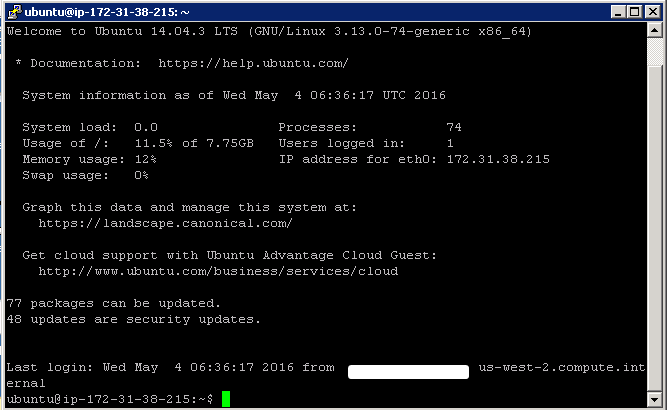
At which point we should be in business. You should have a direct session open to our Unix-Git machine directly from our Windows Master machine
- install the private key on the Windows Client machine
Now we just need to take that aeKeyPair.ppk private key file, copy it to our Windows Client machine and install the key there too.
Make sure you have this file on you Windows Master machine desktop:
aeKeyPair.ppk
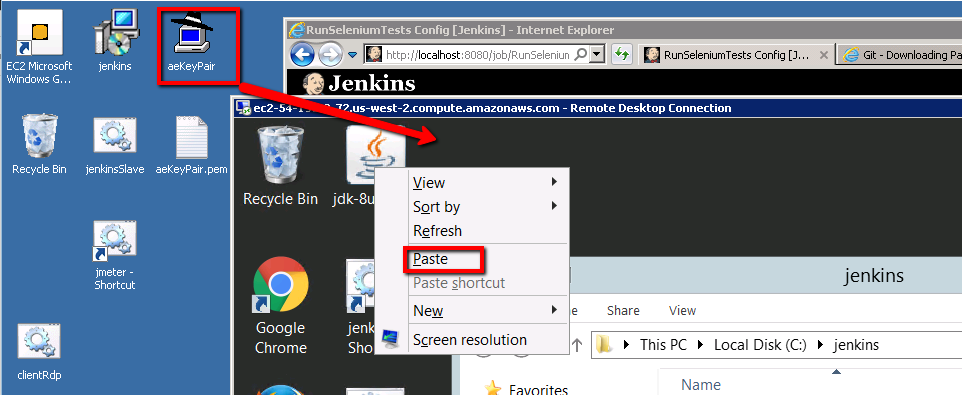
Once you’ve located it you’ll need to copy it
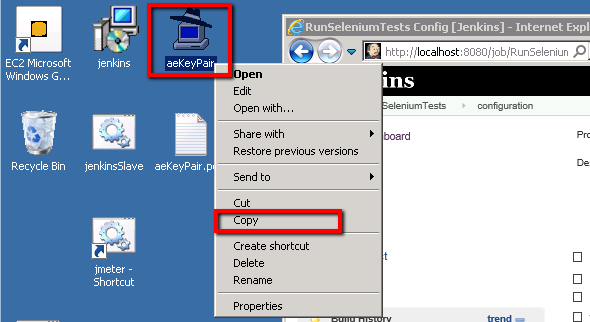
Then open an RDP session to the Windows client machine
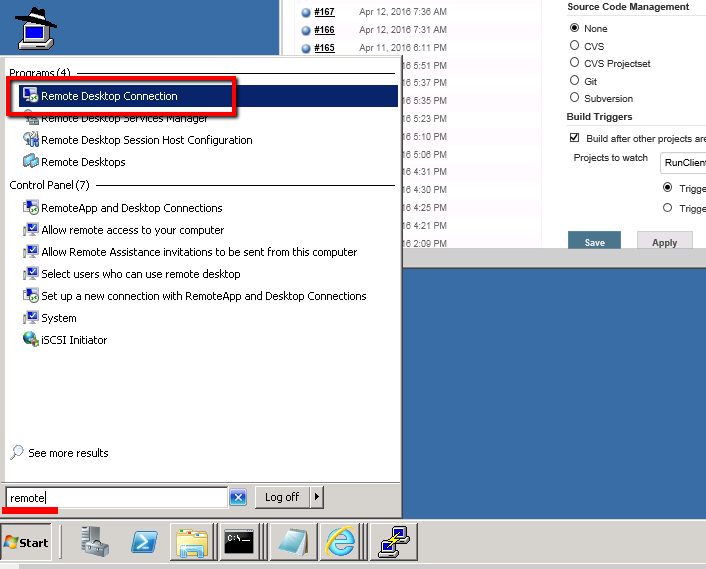
You’ll need to go to your AWS console and get the Public DNS/IP value for this host if you can’t remember it. Once you have the Public DNS/IP value enter it in the RDP dialogue box and connect.
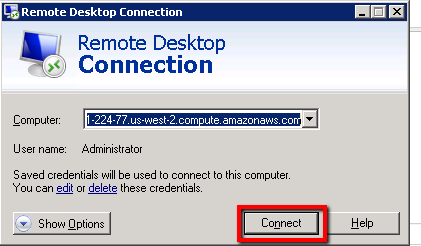
You shouldn’t need to authenticate with user and password details. It should connect immediately. We set up automatic authentication back in Module 3.
Once connected paste the ‘aeKeyPair.ppk’ file to the desktop of the Windows client machine.
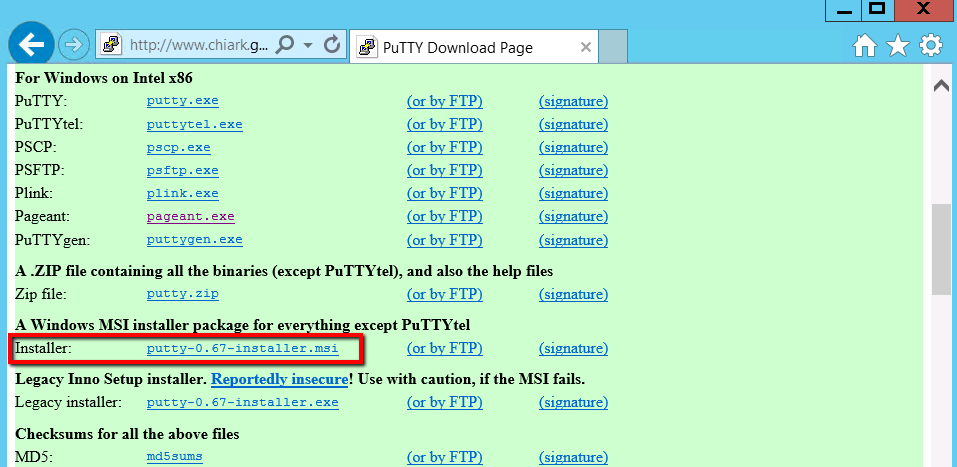
Download the Putty SSH tools and install on the Windows client machine:
http://www.chiark.greenend.org.uk/~sgtatham/putty/download.html
You need to select, download and install using the ‘putty-0.xx-installer.msi’ file:
Step through the instal wizard and select all the defaults. Start Putty Agent from the install directory:
C:\Program Files (x86)\PuTTY
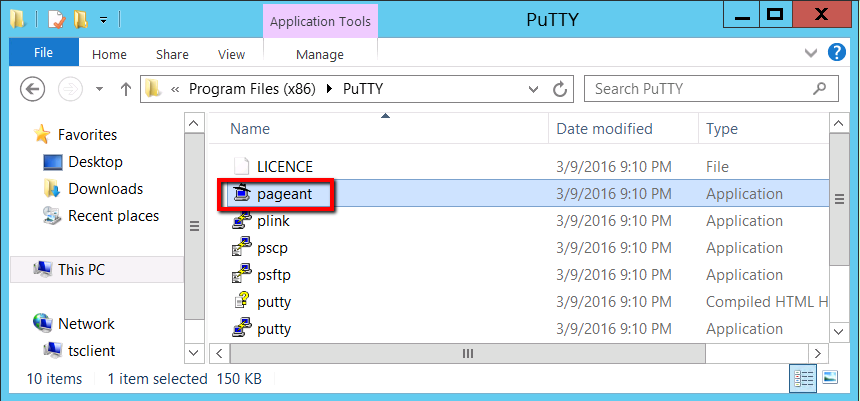
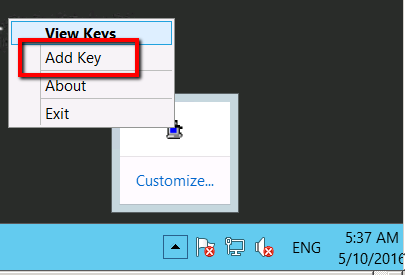
Right click on Putty Agent in the task tray and select ‘Add Key’
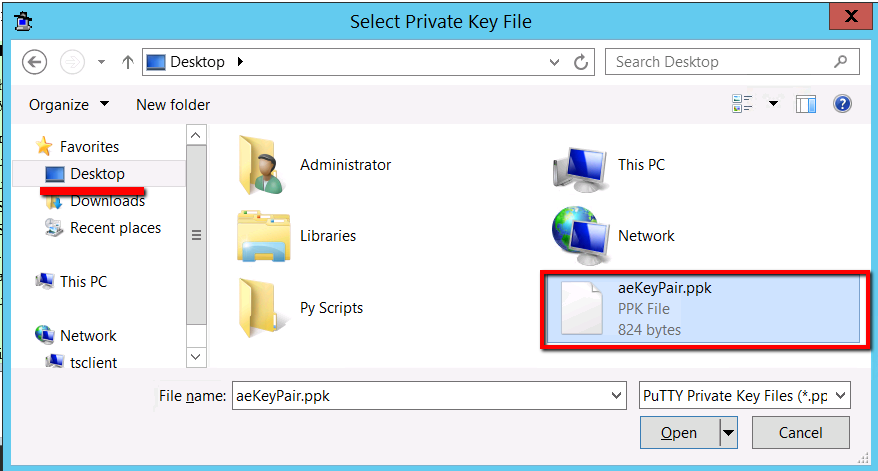
At which point we need to select our new ‘aeKeyPair.ppk’ file:
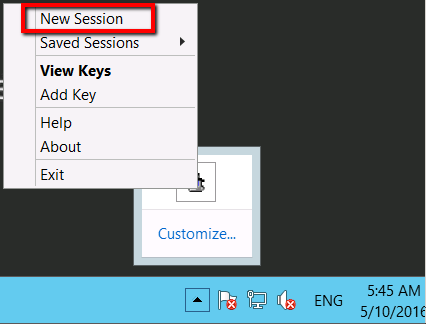
Enter your Passphrase and we should be ready to add our new Linux Ubuntu machine as a new Putty client. So open Putty again and select ‘New Session’ this time round:
Now we need to configure our new Unix-Git machine as a new Session in Putty. First you’ll need to find the ‘Private IP address’ from your AWS terminal:
Jot this IP address down and configure the following in Putty:
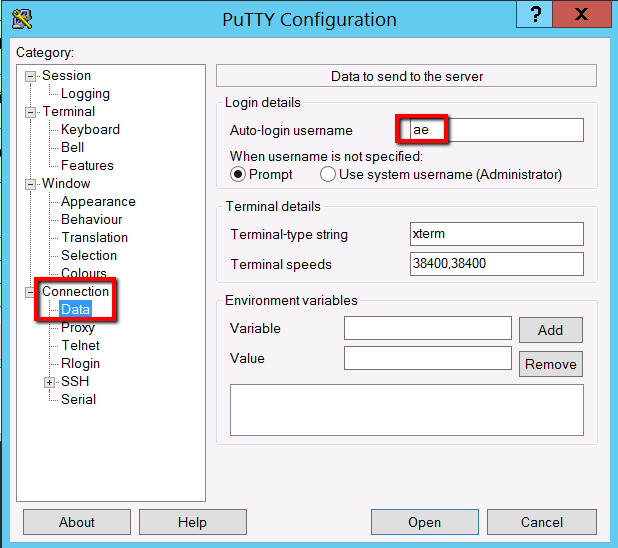
Connection -> Data -> Auto-login Username: ae
Hot Name:
Saved Sessions: Unix-Git
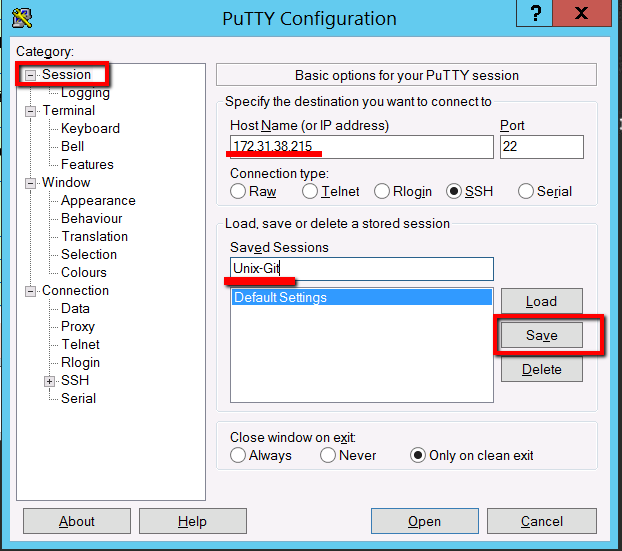
You have to be careful here that you click save and not load. If you click load it loads up another sessions details, without warning, and you lose your new session details. So save this. Then click on the new ‘Unix-Git’ entry and select ‘Open’
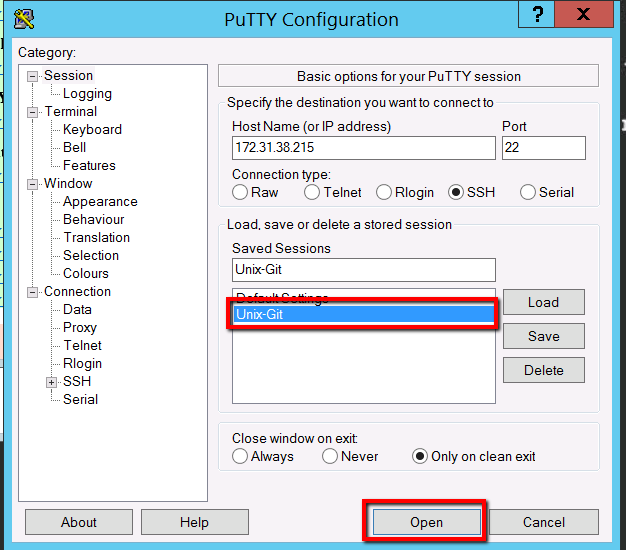
Accept the security warning by selecting the ‘Yes’ button
At which point we should be in business and have a direct session open to our Unix-Git machine.
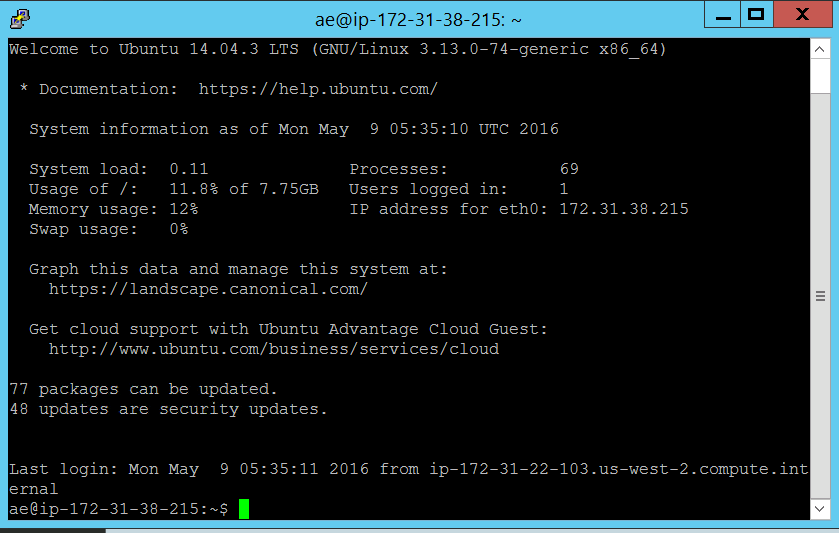
All of this is essential if we want our machines to be able to automatically check out code from our Git source code repository without having to authenticate everytime with a user name and password.
Now we’re ready to setup our Git source code repository and start saving all our test scripts (Selenium, JMeter and SoapUI) safely in this repository.
Part 5: Configure the Git Server
Git is already installed on our Ubuntu Linux server (we set this up earlier). We just need to run a handful of commands to configure Git as we need it. We can do this from either of the SSH shells we have access to. Either the Putty SSH shell running on the Windows Master machine or the SSH shell provided as part of the AWS management console. I’m going to use the SSH shell from Putty on our Windows master machine.
- Connect to the Linux Ubuntu machine using Putty
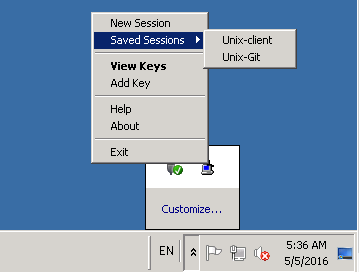
On the windows master machine from the Putty saved sessions select ‘Unix-Git’
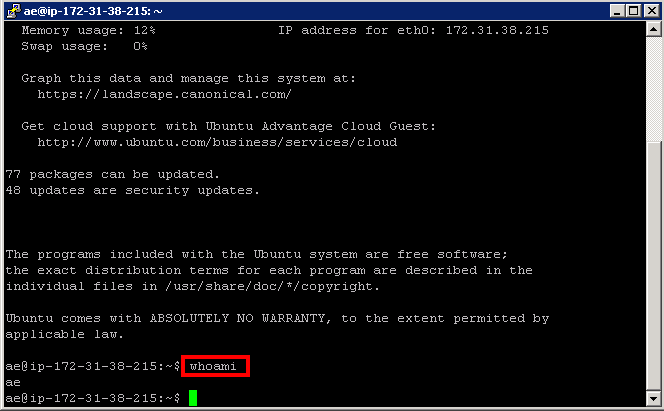
This should take you straight into an SSH terminal with no authenticating required. And if you type ‘whoami’ you should see that you’re logged in as the ‘ae’ (automation engineer) account.
- Now we need to create a ‘bare’ (empty) Git repository
We’ll run these commands to create an empty directory for our Git repositories.
mkdir ~/git mkdir ~/git/selenium cd ~/git/selenium git init –bare
Which should give you:
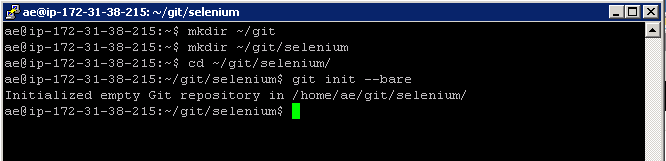
We’re creating a directory for our Selenium source code first. Then we’re changing to that Selenium directory and initialising a new git repository with the ‘git init –bare’ command. The ‘bare’ option just means create an empty Git project.
- Create repositories for our other projects
Now we know how to create bare repositories we can create them for the other JMeter and SoapUI source code we’re working with. Just run these commands:
mkdir ~/git mkdir ~/git/jmeter cd ~/git/jmeter git init –bare
Which creates our JMeter repository. Just SoapUI left
mkdir ~/git mkdir ~/git/soapui cd ~/git/soapui git init –bare
Now we have one Git source code repository (or Git project) for each of our test tools.
Next we need to make that initial commit of source code for the tools we’re using. We’re going to work through doing this for our Selenium code in the next few sections.
Part 6: Commit Our Selenium Source Code to the Git Server
First then we need a Git client running on our machines where we currently have our source code. For example we have developed our Selenium scripts on our Windows client machine. We’ll need to install a Windows Git client on our Windows master machine and our Windows client machine. That Git client can then commit our Selenium scripts to our Git server. Then all our machines (e.g. our Jenkins slave machines) will have access to this source when they need it.
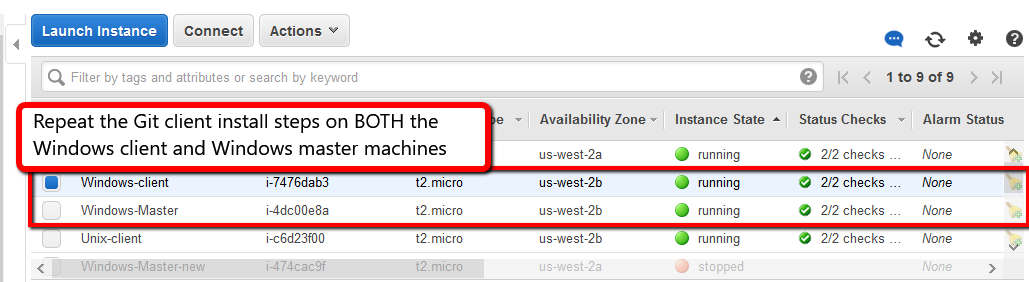
Let’s install this Git client then. These steps need to be repeated BOTH on your Windows Master machine AND your Windows Client machine.
- In IE download Git
Open IE and go to this Url
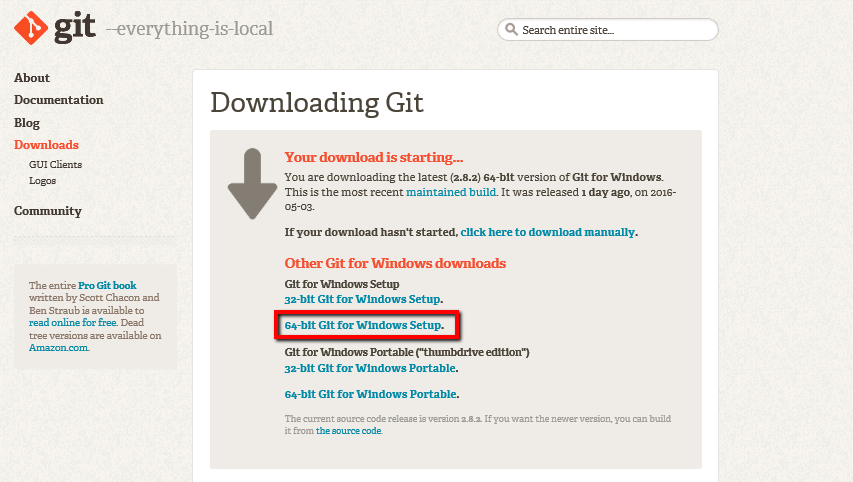
Fight your way through all the IE security warnings if you have to. Then click the ‘64-bit Git for Windows Setup’ link
If you run into download issues you may need to adjust your IE security settings
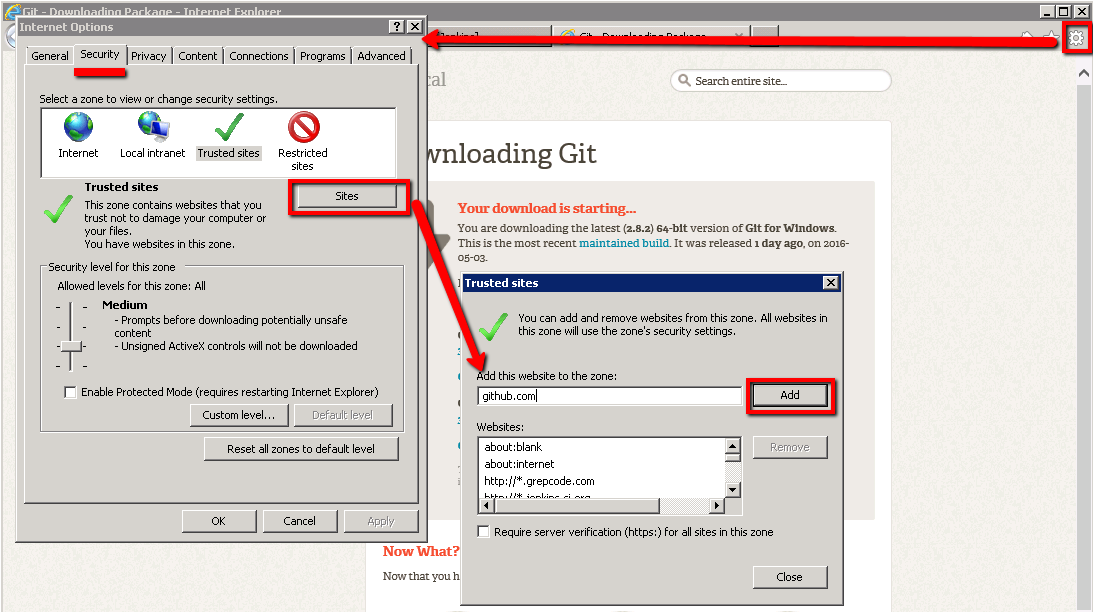
You’ll need to add these domains to the zone:
That should allow you to download the installer once you click on the IE warning

- Install Git on your Windows Master machine
Then click run:

Accept all defaults in the install wizard EXCEPT for the ‘Choosing the SSH executable’ option. For this make sure you select ‘Use (Tortoise) Plink’ and enter the path to ‘plink.exe’
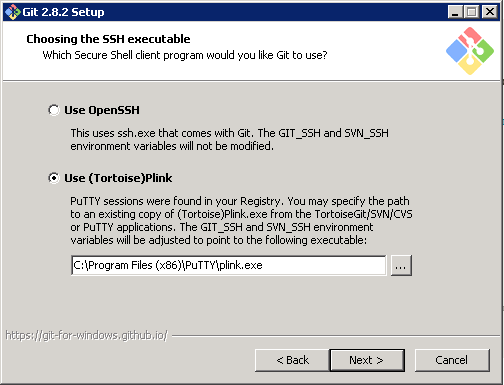
And that should be it. Next you should see the completion Window
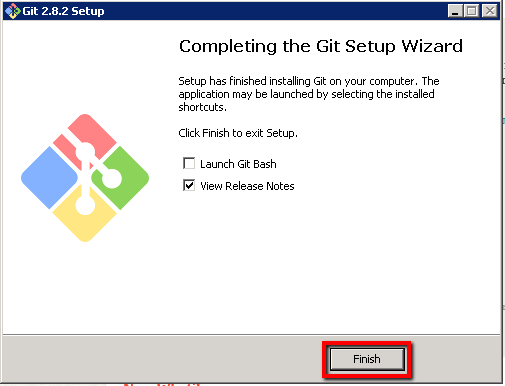
- Check the Git GUI Starts
From here on the Start menu you should be able to start the Git GUI application
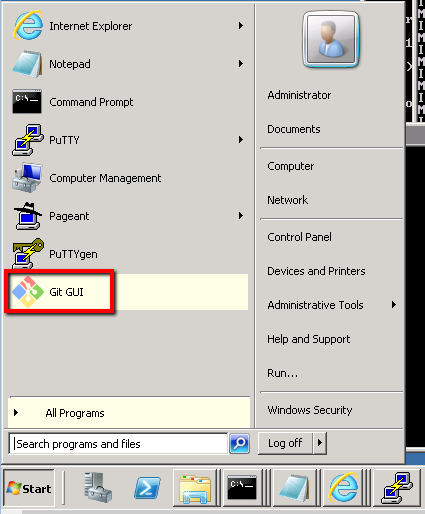
Which should give you:
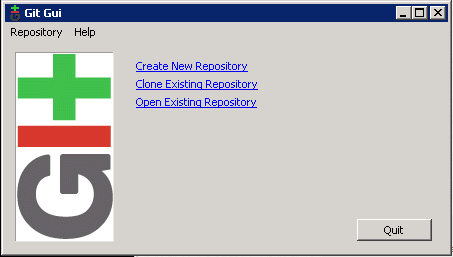
You can click ‘Quit’ for now.
- Check the Git command line application
Also check your Git install works from your command line. So open a command windows:
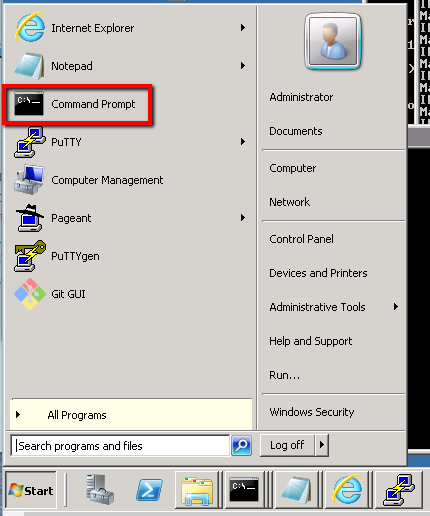
And type this command:
git –version
This should confirm the Git command line tools work as you’ll see the version of Git that’s been installed.
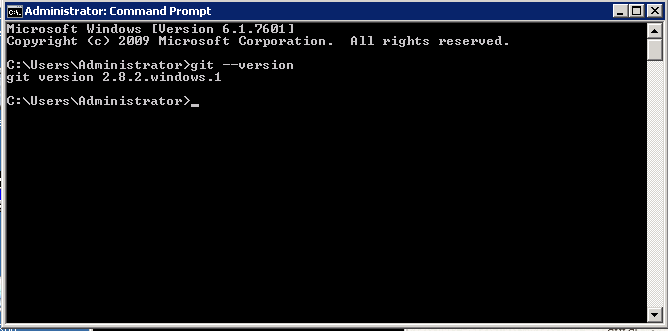
From here we’re ready to start pushing our Selenium script to our repository.
Part 7: Commit our Selenium Script to our Git Repository
In the previous parts we initialised the Git repositories on the Linux Ubuntu machine and we installed the Git client application on our Windows machines. From here we need to use that Git client on our Windows client machine to “add” our Selenium code to the Git repository on the Linux Ubuntu machine.
Not surprisingly we’ll be using the Git ‘add’ command along with the Git ‘commit’ command. We’ll be doing all of this with the Git command we just ran from the Windows command prompt.
- Open an RDP session to the Windows Client machine
Then open an RDP session to the Windows client machine
You’ll need to go to your AWS console and get the Public DNS/IP value for this host if you can’t remember it. Once you have the Public DNS/IP value enter it in the RDP dialogue box and connect.
You shouldn’t need to authenticate with user and password details. It should connect immediately. We set up automatic authentication back in Module 3.
- Locate our Selenium scripts
Back in Module 3 we wrote and ran our Selenium scripts. We should find our Selenium script on our Windows Master machine on the Desktop
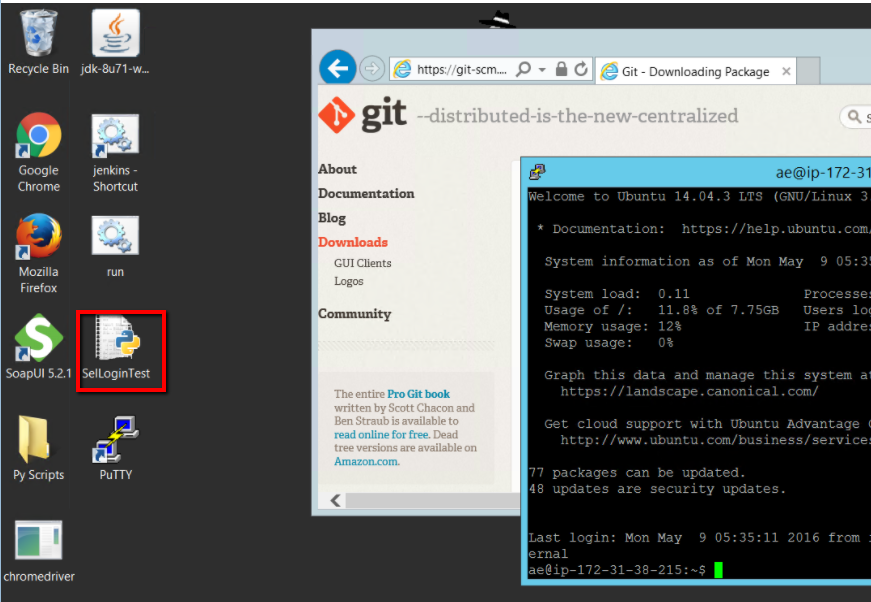
Not the best place to store them! Which is exactly why we’re setting up a Git source code repository to keep them safe.
- Create a new folder to store the Selenium script
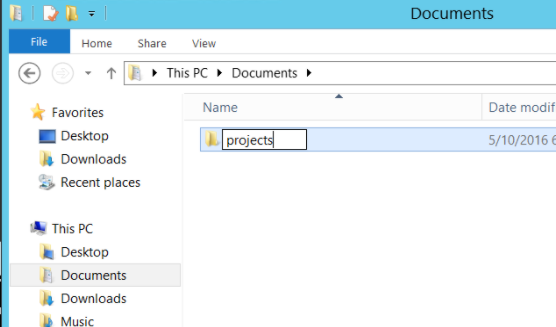
In an Explorer window create a new folder ‘projects’
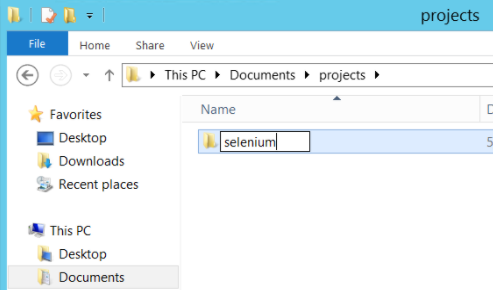
Followed by a sub directory ‘selenium’
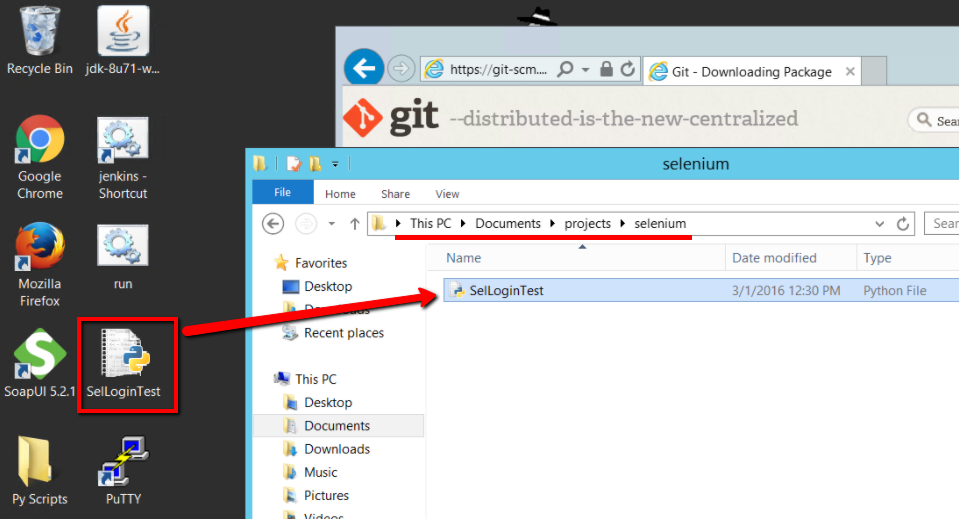
So you should have this new directory path:
C:\Users\Administrator\Documents\projects\selenium
- Copy your Selenium script into this folder:
- Open a Git command prompt session
Right click in the Explorer window and select the ‘Git Bash Here’ option
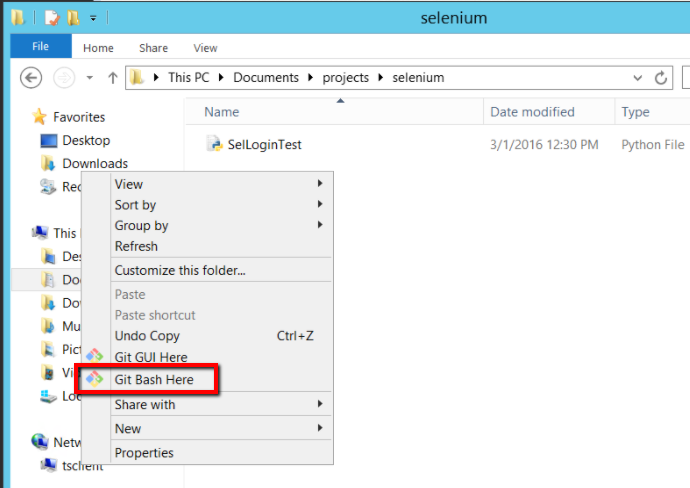
At which point you should see a Git terminal open
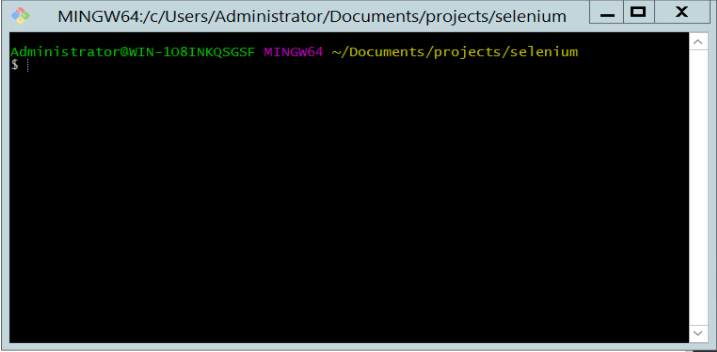
From here we can copy (or check in) our Selenium scripts to our Git source code repository on the Linux Ubuntu server
- Commit your Selenium Script to Git
First we need to prepare Git so that it knows who and what needs committing to our souce code repository. We’ll need to run these commands:
$ git init $ git config –global user.name “Automation Engineer” $ git config –global user.email “ae@ae.com” $ git add . $ git commit -m ‘initial commit’
This should give you a series of commands like this:
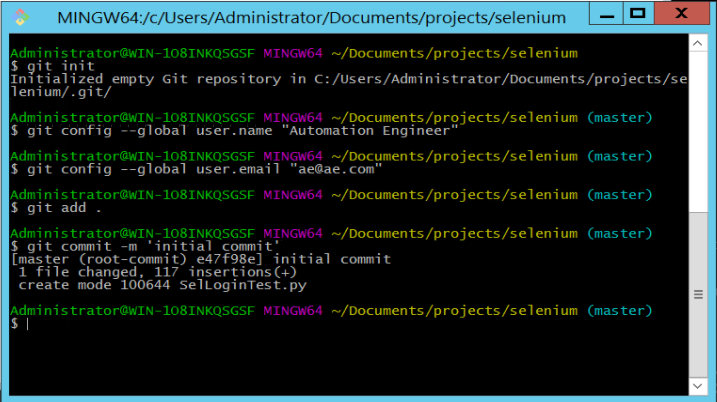
The init command setups Git in this directory (if you run the command ‘ls -la’ you’ll see a new hidden directory that contains all the Git data). Then the config command sets up the git user on this machine. You can’t do anything without setting up the git user as this information is tied closely to everything you checkin to git. Then we tell git that we want to ‘add’ this directory to our repository. Finally the commit command commits our files locally ready for them to be pushed to the Linux Ubuntu server.
To add the files to the Linux Ubuntu server we’ll need to run these final two commands:
$ git remote add gitserver Unix-Git:/home/ae/git/selenium $ git push gitserver master
Which should give you something like this:
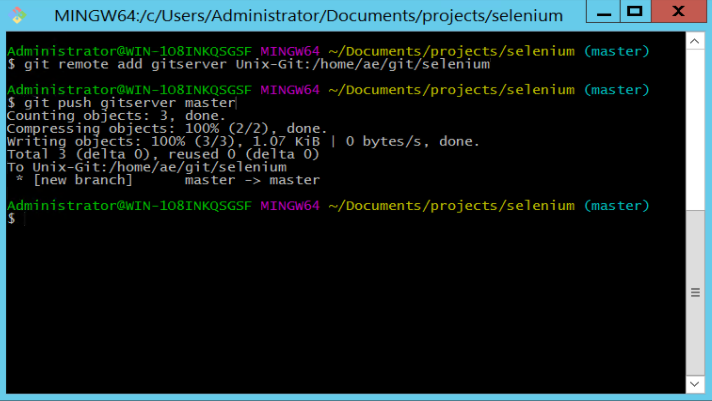
What we’re doing here is first adding a remote server. Essentially identifying the Linux Ubuntu machine where we want to push and commit our Selenium scripts to. Note that we define the server name as ‘Unix-Git’ which is the ‘Putty’ name we defined for this server earlier.
Once we’ve added a remote called ‘gitserver’ we can use this as part of our final ‘push’ command. The ‘push’ command sends the files to the ‘gitserver’ and adds them to the branch called ‘master’.
Now are Selenium script is safe in our Linux Ubuntu source code repository. It’s available for other users and servers in our framework of machines to use. In the next two sections we’ll look at…
1. Modifying the selenium script on another server and checking the changes in
2. Updating our Jenkins job so that it uses the latest Selenium source code from the Git server
At this point though we’re well on the way to having a distributed source code repository that stores all our automation scripts safely. All we need to do is update our Jenkins job so that it uses the Selenium source code from the repository. From there any updates that are made to the sripts, so long as they are pushed to the repository, will be picked up by our Jenkins job.
Part 8: Updating our Jenkins Job to Use the Git Repository
With our Selenium source code safely stored in our Git Repository all we need to do is make sure that our Jenkins job, that executes the Selenium scripts, pulls the latest source from the repository before it starts. To do that we just need to make a few updates to our ‘RunSeleniumTests’ job.
TODO: put the schematic diagram in here
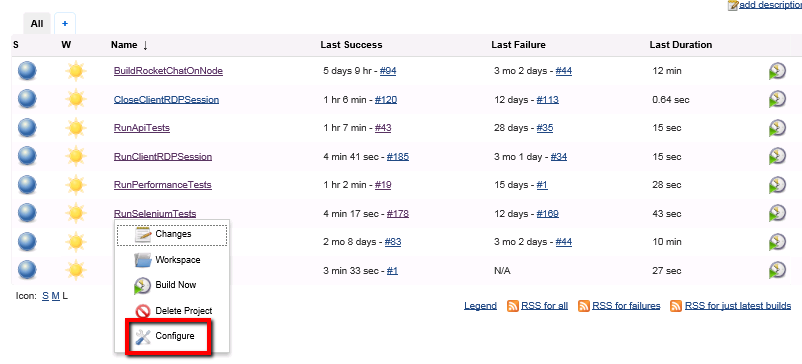
- Configure the ‘RunSeleniumTests’ job
Click on the configure menu option for the ‘RunSeleniumTests’ job on the Jenkins home page:
- Change the ‘Source Code Management’ option
In the ‘Source Code Management’ section change the option from ‘None’ to ‘Git’

- Enter details for the Git Repository
We need to point this job at our new Git repository residing on our Linux Ubuntu machine. Update the ‘Repository URL’ field with this value:
Unix-Git:/home/ae/git/selenium
This tells Jenkins to use our already configured (back in part 4) Putty ssh connection. If you remember we configured a Putty client called ‘Unix-Git’. We use this Putty client name as the first part of the repository Url (this is what established the link to the Git server over Putty Ssh). Then we define the location of the Selenium Git project on the Git server. This should look like this…
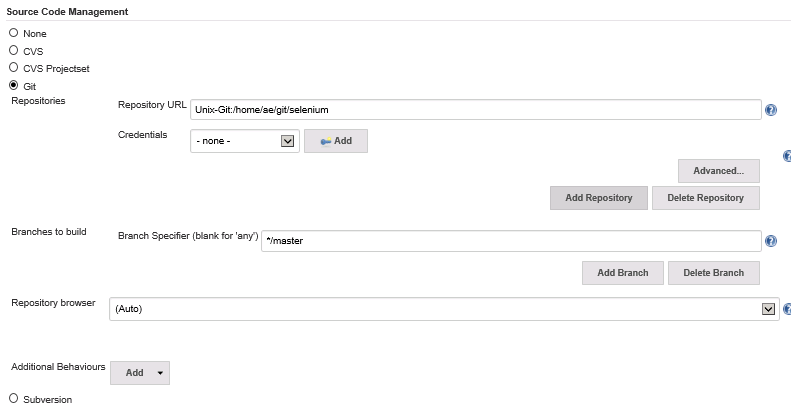
We don’t need any security credentials defined (we’ve already specified Putty Ssh host) and the branch to build should automatically be set to “*/master”.
With this configured Jenkins will pull our SelLoginTest.py script out of the Git repository prior to running the build commands specified in this job. So next we need to tell Jenkins to use this Selenium script that it gets from the Git repository.
- Update the ‘Execute Windows batch command’
Once Jenkins, executing the RunSeleniumTests job on the remote Windows machine, pulls out the SelLoginTest.py script from Git it can be executed. The Git pull request executed on the Windows client machines places a copy of the SelLoginTest.py script in this directory on the Windows client machine
C:\jenkins\workspace\RunSeleniumTests
Where the ‘RunSeleniumTests’ in this path is the name of our Jenkins job. So you’ll see it on the Windows client machine here:
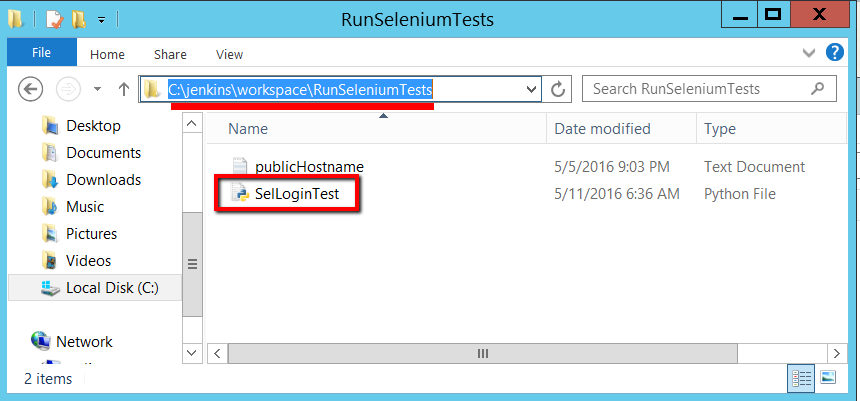
The only problem is that our Jenkins job, the ‘Execute Windows batch command’ section, points at the ’SelLoginTest.py’ script on the Desktop. Back on our Windows Jenkins master machine you see this configured in the Jenkins job here:

We need to update this so that it points at the checked out script in the Jenkins work space. So change this to:
set %WORKSPACE%\SelLoginTest.py Ie %PUBLIC_HOSTNAME% %WORKSPACE%\SelLoginTest.py Chrome %PUBLIC_HOSTNAME% %WORKSPACE%\SelLoginTest.py Firefox %PUBLIC_HOSTNAME%
Notice that we’ve used the Jenkins Environment variable %WORKSPACE%. Jenkins knows where the work space is on the Windows client machine so we may as well let Jenkins work that out each time the job runs. Once updated the command field should look like this:

- Run and Test the Updated Job
Save the updated Jenkins job and return to the dashboard. You can run this job now and check it works:
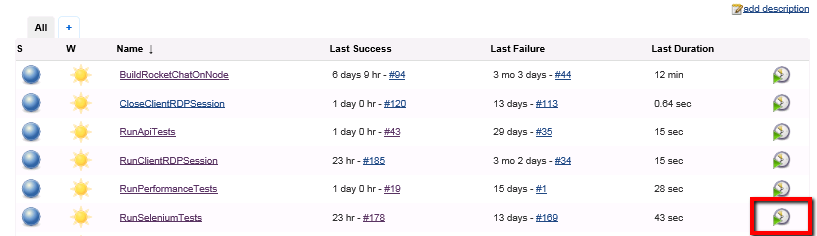
If you view the console output for this job you should see it start off with something like this:
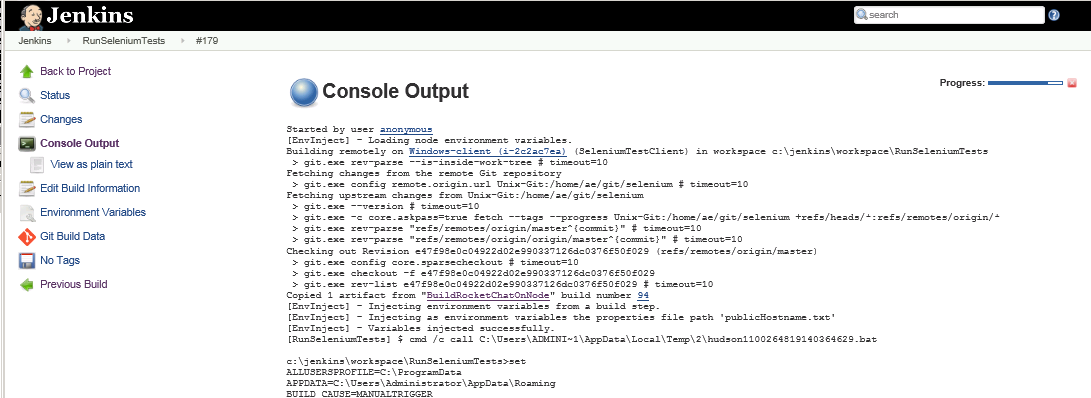
The part here being these few lines:
Building remotely on Windows-client (i-2c2ac7ea) (SeleniumTestClient) in workspace c:\jenkins\workspace\RunSeleniumTests Fetching changes from the remote Git repository git.exe config remote.origin.url Unix-Git:/home/ae/git/selenium # timeout=10 Checking out Revision e47f98e0c04922d02e990337126dc0376f50f029 (refs/remotes/origin/master) git.exe config core.sparsecheckout # timeout=10
This shows that Jenkins is using Git to fetch any changes to the SelLoginTest.py scripts. In this case there haven’t been any changes so not much happens. In the next part we’ll see what happens when we have made changes.
The other piece of note is the last section in this console output.

You’ll see here, for example, that Jenkins has expanded the %WORKSPACE% environment variable and replaced it with the full path to the workspace where our SelLoginTest.py file has just been checked out from Git to:
c:\jenkins\workspace\RunSeleniumTests>c:\jenkins\workspace\RunSeleniumTests\SelLoginTest.py Chrome http://ec2-54-200-24-122.us-west-2.compute.amazonaws.com:3000
The final part in this is making sure we can make changes to our SelLoginTest.py scripts from other machines and checking them into to Git. Then we’ll want to see those changes being checked out by our Jenkins job on the Windows client machine. We’ll see this in action in the next section.
Part 9: Modify and Commit our Selenium Scripts from another server
At this stage then, maybe another tester decides our Selenium script needs a little updating (more comments perhaps). On our Windows master machine we can check out the scripts, make our modifications and then push the mods back to the repository. Next time we run our Jenkins ‘RunSeleniumTests’ job we should see those changes in the execution of the Selenium script.
We’ll see this in action as we complete the next few steps where we make changes to the SelLoginTest.py script on the Windows master machine. We’ll then push those changes to our Git repository. When our Jenkins job runs on the Windows client machine we should see those changes incorporated in that test run.
So back on the Windows Master Machine…
- Create a folder for the Selenium scripts
In explorer, in the Document folder, create a new folder called ‘automation’
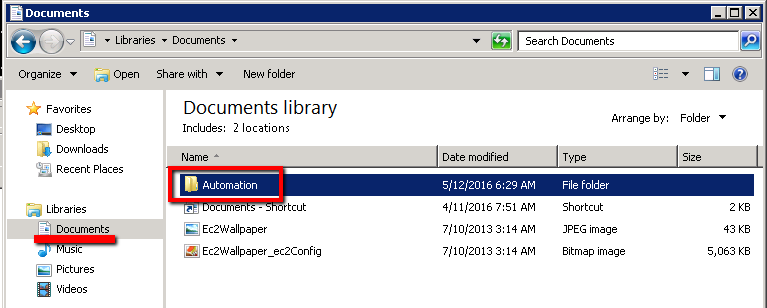
We’ll pull our Selenium project and SelLoginTest.py script out of Git into this directory.
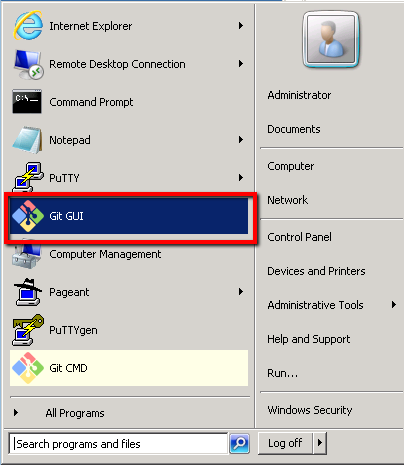
- Open the Git GUI
From the Start menu select the ‘Git GUI’ application
We have three options here. ‘Create New Repository’ which we don’t need as we already have our repository created on our Unix-Git machine. ‘Open Existing Repository’ which means start using a repository that already exists on this local machine (we don’t have anything yet so this is no good). And ‘Clone Existing Repository’ which allows us to take a copy of our repository that is residing on our Unix-Git machine. This is the option we’ll select.
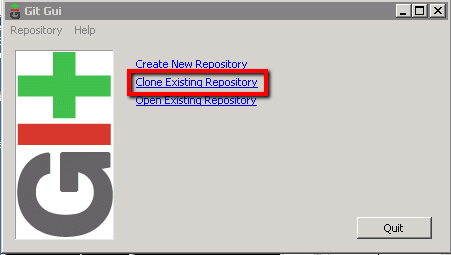
On this next screen we’ll need to enter the location of the repository that’s on our Unix-Git machine and tell the ‘Git GUI’ where is needs to copy that repository to locally. So enter the following:
Source Location: ae@Unix-Git:/home/ae/git/selenium Target Directory: C:\Users\Administrator\Documents\Automation\Selenium
Then click on the ‘Clone’ button:
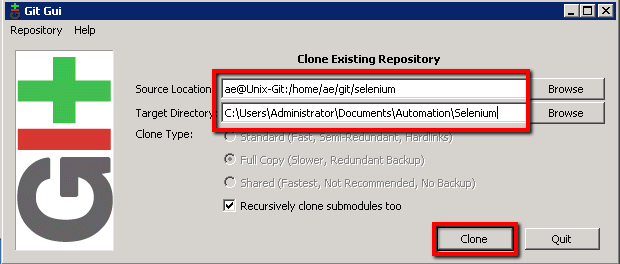
What we’re doing here is using our (already created) Putty ae@Unix-Git ssh connection and the location of our git/selenium project as the source. We’ll clone that project that resides on the Unix-Git machine into a new directory ‘Automation\Selenium’ on this local machine. In Explorer you should now have this…
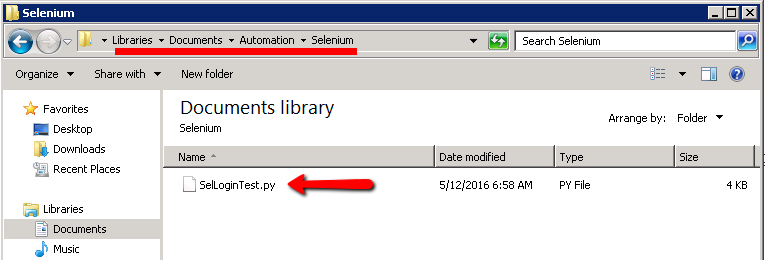
And Git GUI should show you this window…
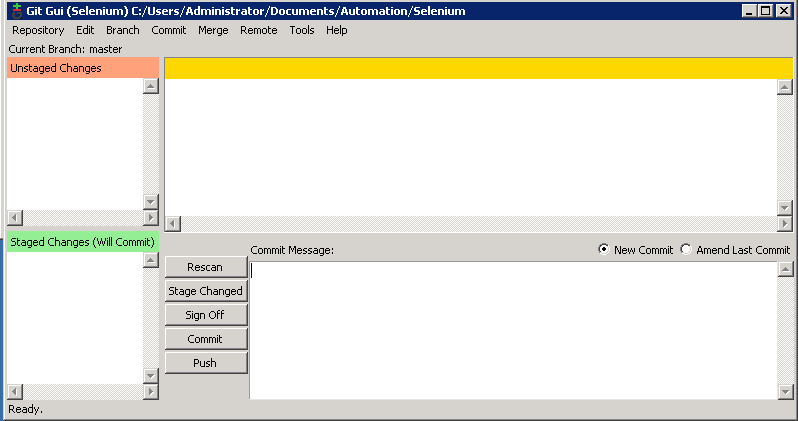
Lets ingnore this window for a second and quickly update our Selenium script
- Open the SelLoginTest.py script
Open ‘notepad’ and edit the SelLoginTest.py script:
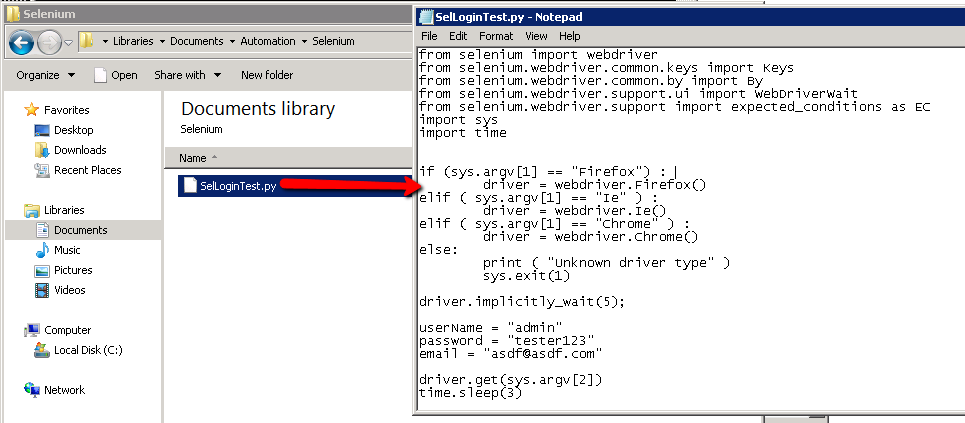
Add a new comment or something, just so that we’ve made a change to the script:
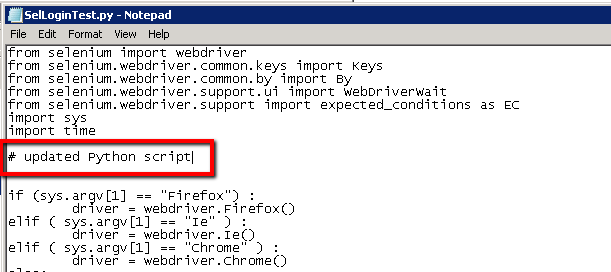
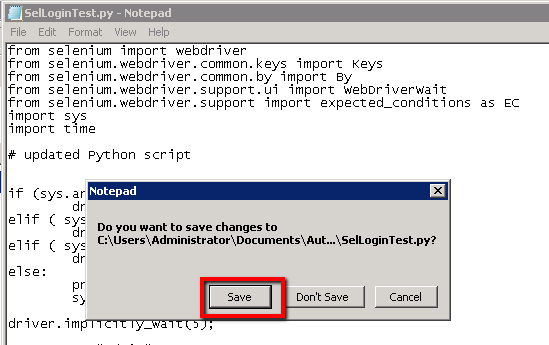
Then close notepad and save the update…
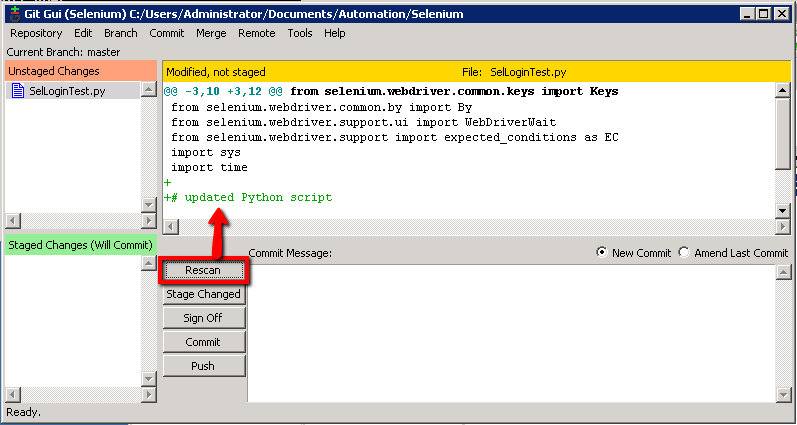
- Git GUI Rescan
In Git GUI click the ‘Rescan’ button to check for the changes we’ve just made. You should see the modification listed like this…
- Git Config Now we can ‘Commit’ the changes to our local repository. Then we can ‘Push’ the changes to our master repository on our Unix-Git machine. Before we can commit the changes we need to setup our identity on this machine (using ‘git config’ like we did on the Windows client machine).
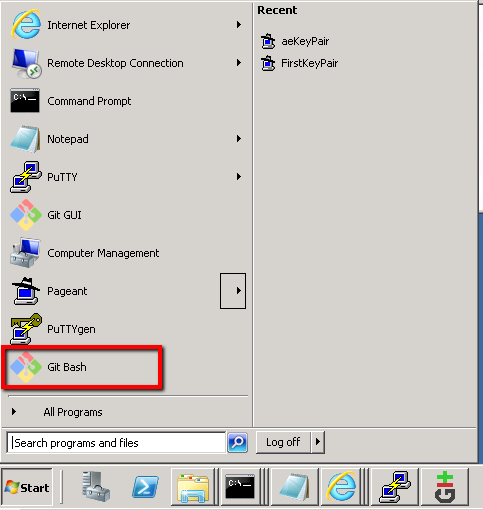
Then run these two commands at the prompt:
$ git config –global user.name “Automation Engineer” $ git config –global user.email “ae@ae.com”
Which should give you this:
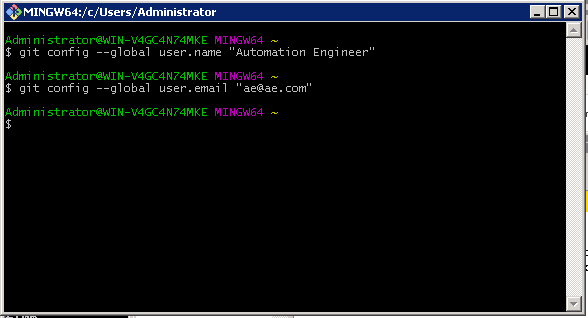
That step is just a one off config step. We need to run it otherwise ‘Git GUI’ will complain that it doesn’t know your identity to complete the commit. Once you’ve run it you won’t need to do it again prior to future commits.
Then back in ‘Git GUI’ we should be able to run our commit. First enter some text in the ‘Commit Message’ section to sumarise the change you’ve made. Then click the ‘Rescan’, then the ‘Stage Changed’ button followed by the Commit’ button
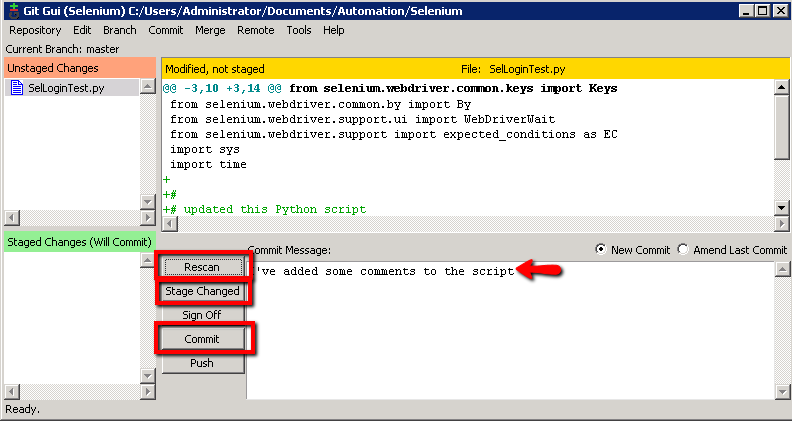
Right, all that’s done is commit your changes locally. It’s hasn’t pushed the changes to the Git Unix repository. We’re ready to push them though.
- Git Push
Now we’ll be able to ‘Push’ the changes so that our Jenkins job can pick up these changes.
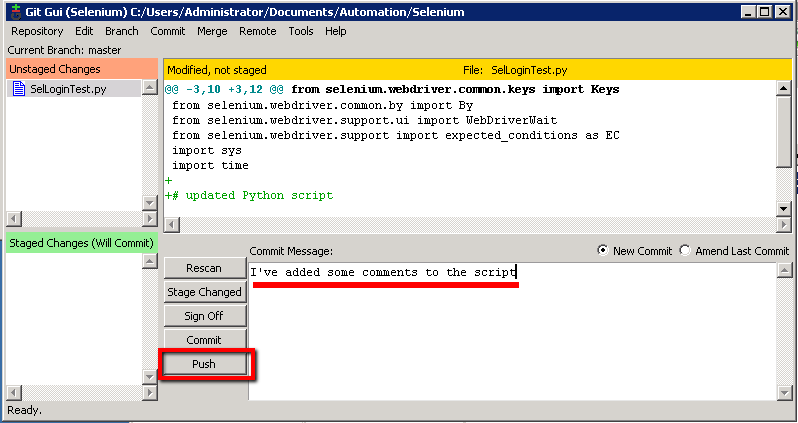
On the ‘Push’ dialogue box just select all the defaults and click ‘Push’:
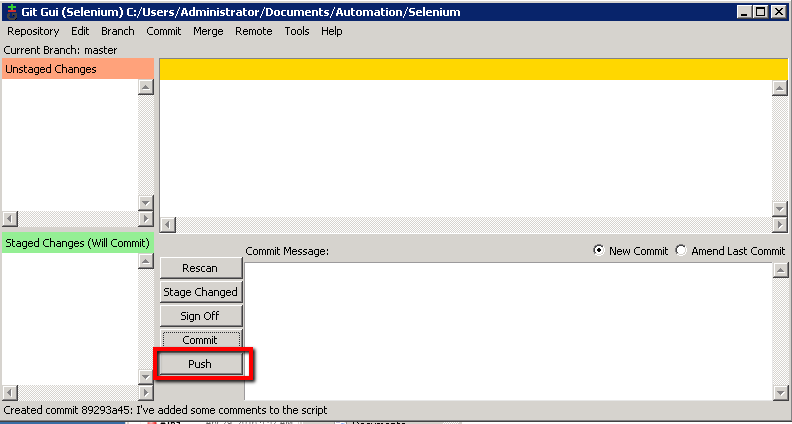
You should see this confirmation box showing the successful push:
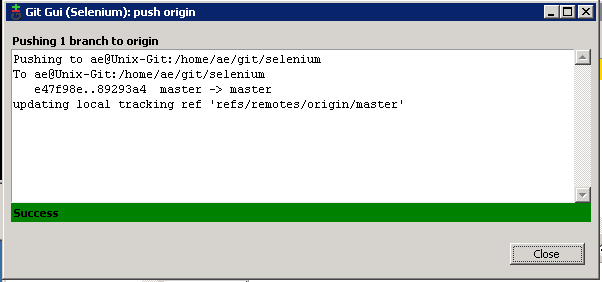
Now we’re ready to see if Jenkins will pick up these changes in the next run of the ‘RunSeleniumTests’ job.
- Build the ‘RunSeleniumTests’ Job and Confirm pull of Updated Source
Back in Jenkins on the Windows master machine lets run the Selenium test job again. This time we’ll check the job pulls the latest source out of Git before running the SelLoginTest.py script.
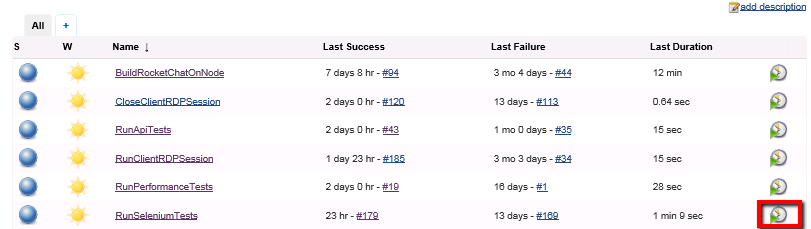
As this is running we can check the build log:
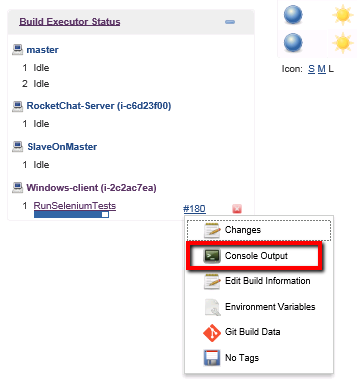 And in here we should see some of these messages at the start of the console output:
git.exe rev-parse –is-inside-work-tree # timeout=10 Fetching changes from the remote Git repository git.exe config remote.origin.url Unix-Git:/home/ae/git/selenium # timeout=10 Fetching upstream changes from Unix-Git:/home/ae/git/selenium git.exe –version # timeout=10 git.exe -c core.askpass=true fetch –tags –progress Unix-Git:/home/ae/git/selenium +refs/heads/:refs/remotes/origin/ git.exe rev-parse “refs/remotes/origin/master^{commit}” # timeout=10 git.exe rev-parse “refs/remotes/origin/origin/master^{commit}” # timeout=10 Checking out Revision 89293a45f2accb9b4191c717c23363901fd247d6 (refs/remotes/origin/master) git.exe config core.sparsecheckout # timeout=10 git.exe checkout -f 89293a45f2accb9b4191c717c23363901fd247d6 git.exe rev-list e47f98e0c04922d02e990337126dc0376f50f029 # timeout=10
For the observant of you you’ll notice that the check out id (‘89293a45f2accb9b4191c717c23363901fd247d6’) is different. Indicating that we have a different version of our SelLoginTest.py script. If you open the SelLoginTest.py file in the Jenkins ‘workspace’ on this Windows client machine you’ll see our updates:
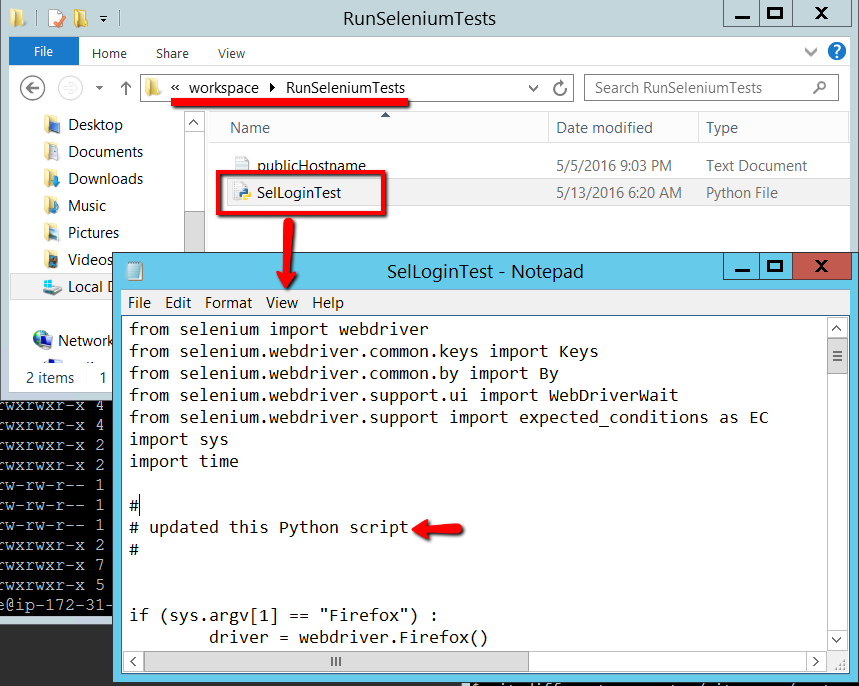
And that’s it! We’ve gone full circle making changes to our Selenium scripts on one machine. Then seeing those changes picked up automatically by our Jenkins job, and the changed Selenium script being used on our Windows client machine.
We can now say that we have control of our test source code. You’re job now it to complete the same set of steps for the SoapUI and JMeter source files.
Conclusion
When we started this module we had everything running in our automation framework. Jenkins could install the application under test, run the Selenium tests, run the SoapUI tests and execute some performance tests. What we didn’t have was control over the source code that was created for these Selenium, SoapUI and Jmeter tests. None of our tests were stored in a central location and none of them version controlled.
In this module we showed you how to setup a central Git server, commit our test files to this Git source code repository and then configure our Jenkins jobs to use the test files stored on this Git server. Finally we looked at how you can develop on one machine and then commit changes to the Git repository. Of course Jenkins then automatically picks up and runs with those latest changes.
All of this makes it easier to collaborate during the development of your tests. It makes it easier to maintain the different versions of your test files and of course revert to old versions if you break something. This whole setup also giving you a distributed repository that’s effectively a backup of all your test files.
Finally, it puts you in the same league as your development team who will undoubtedly be using a source code control tool to manage the development of the application you’re testing.